
Transfer files from your old PC to your new PC.
Computer Copier moves documents, photos, every user's folders, bookmarks, Outlook and Thunderbird email and the settings you choose. Straight across your home network or with a USB drive, with every file checked against the original.
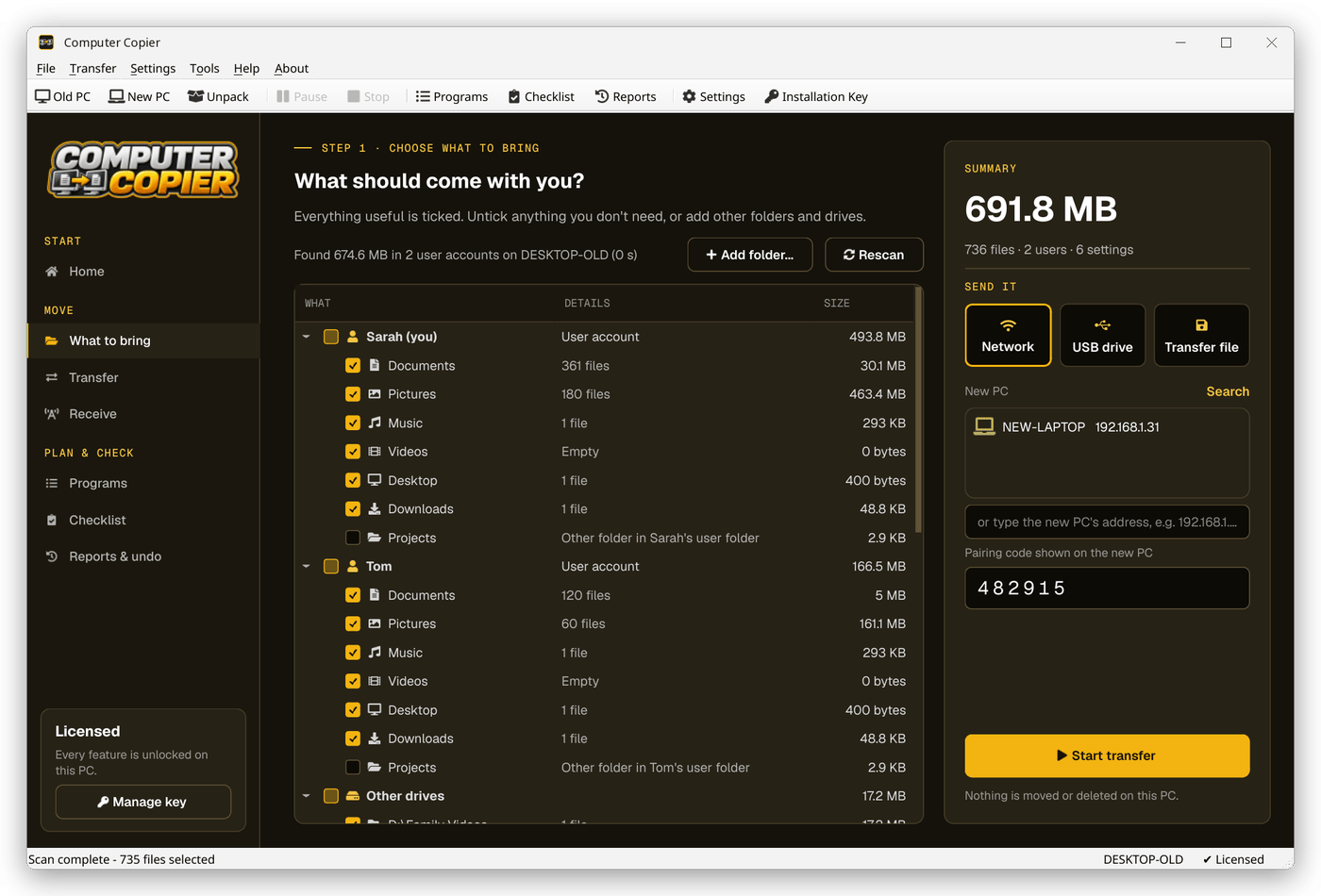
A guided move from start to finish.
These are real screens from Computer Copier. Pick a step to see what you'll see on your own PC.
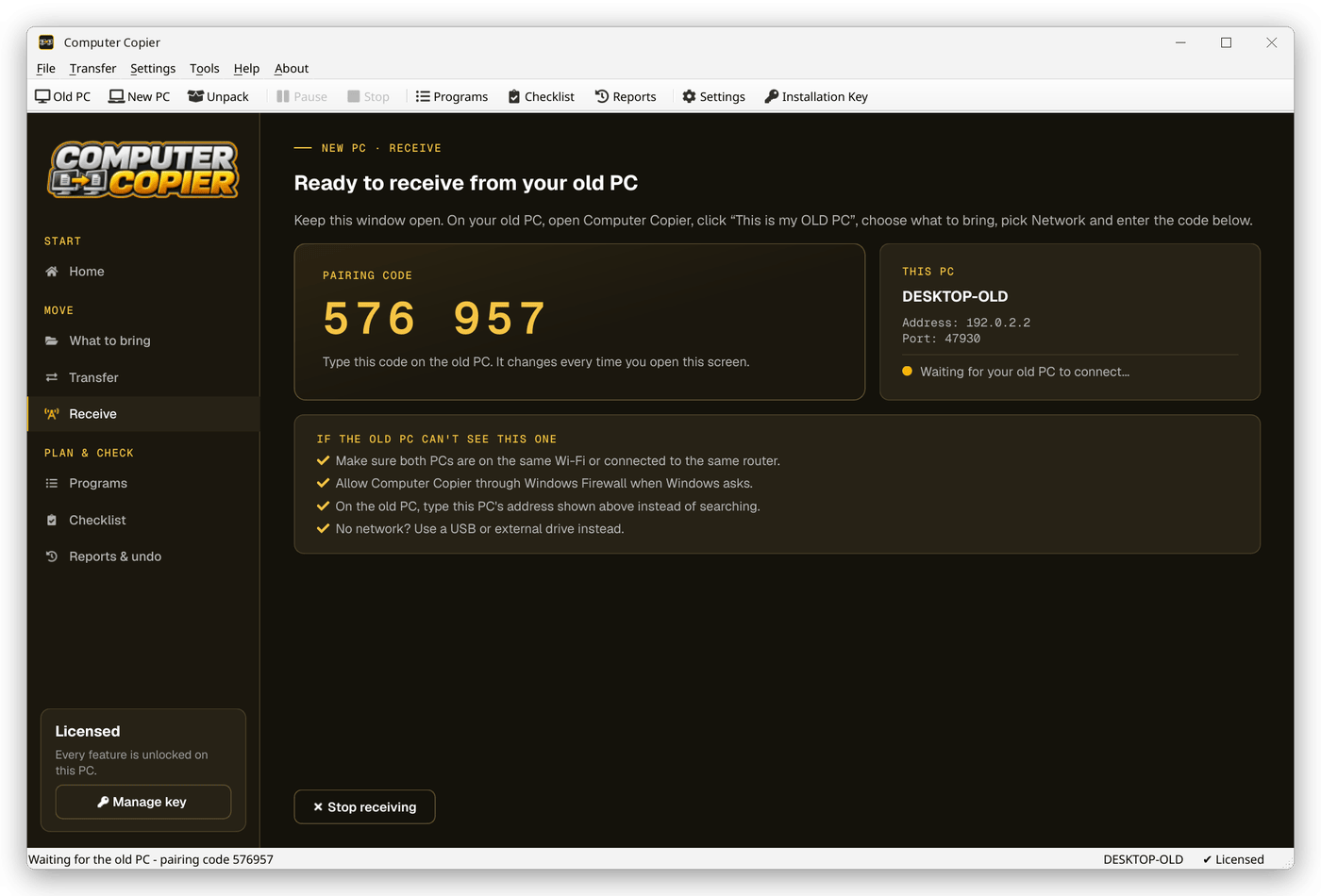
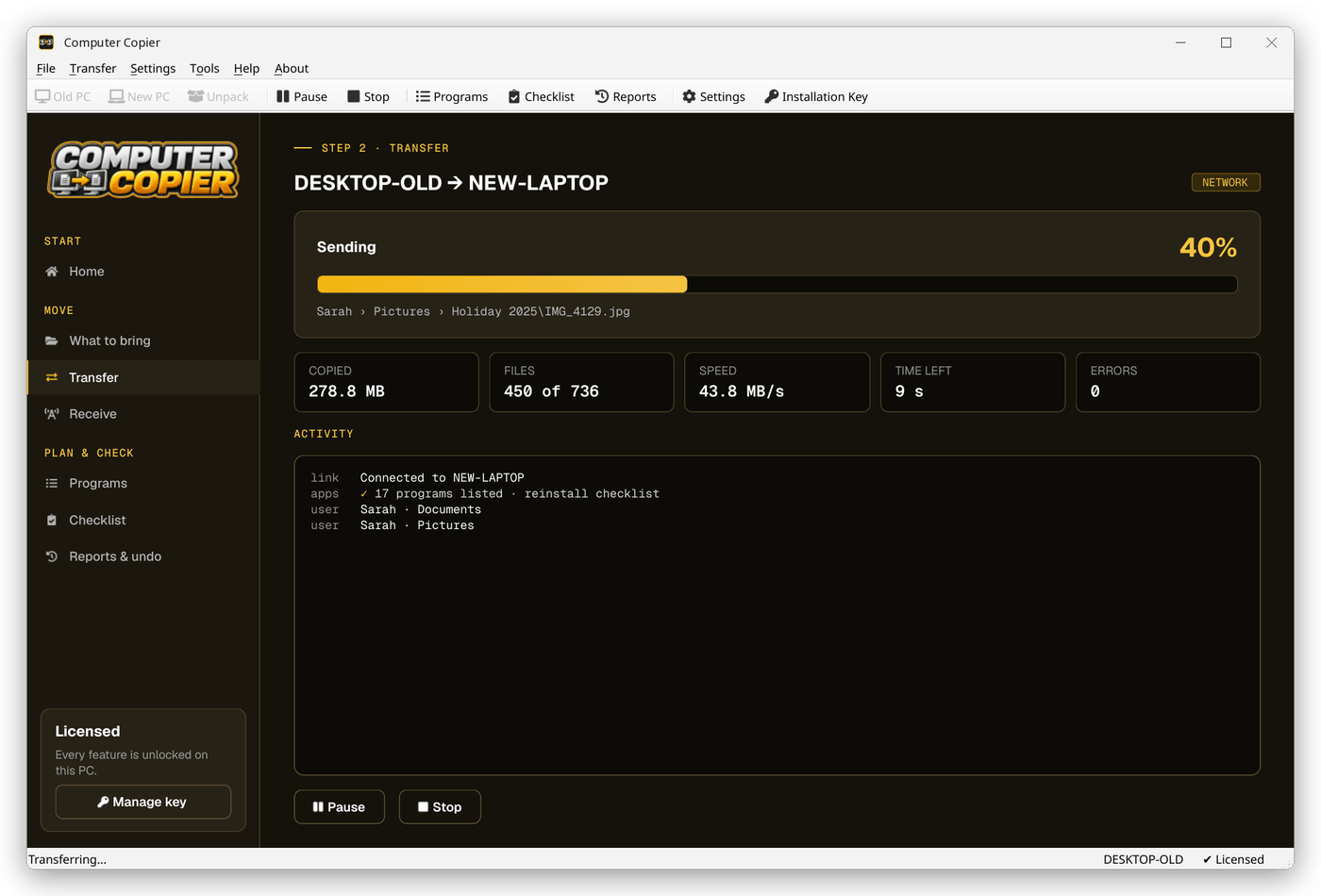
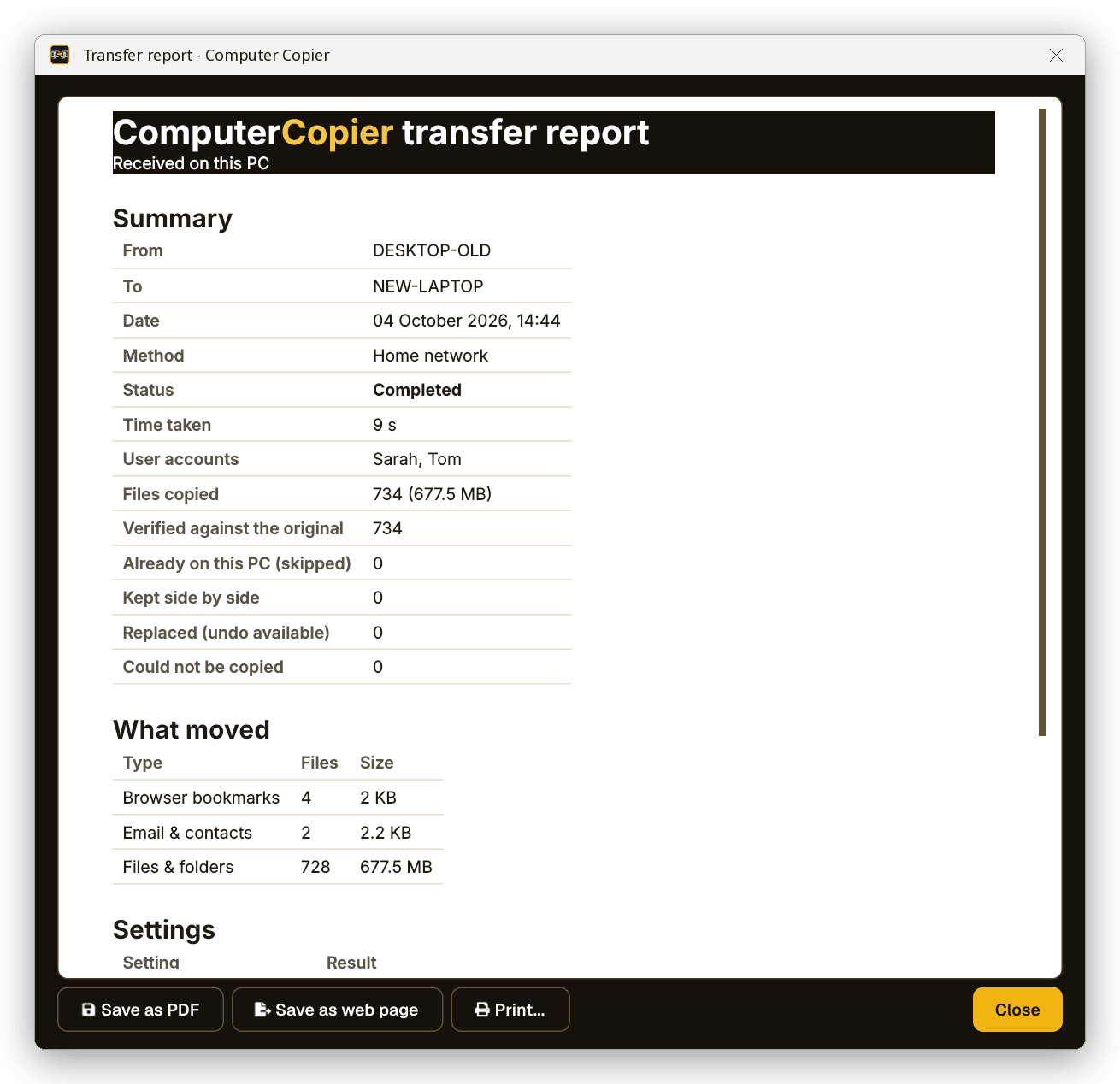
How to transfer everything to a new computer in three steps.
How long it takes depends on how much you're moving and how the PCs connect. Computer Copier shows the size before you start and the time left as it goes.
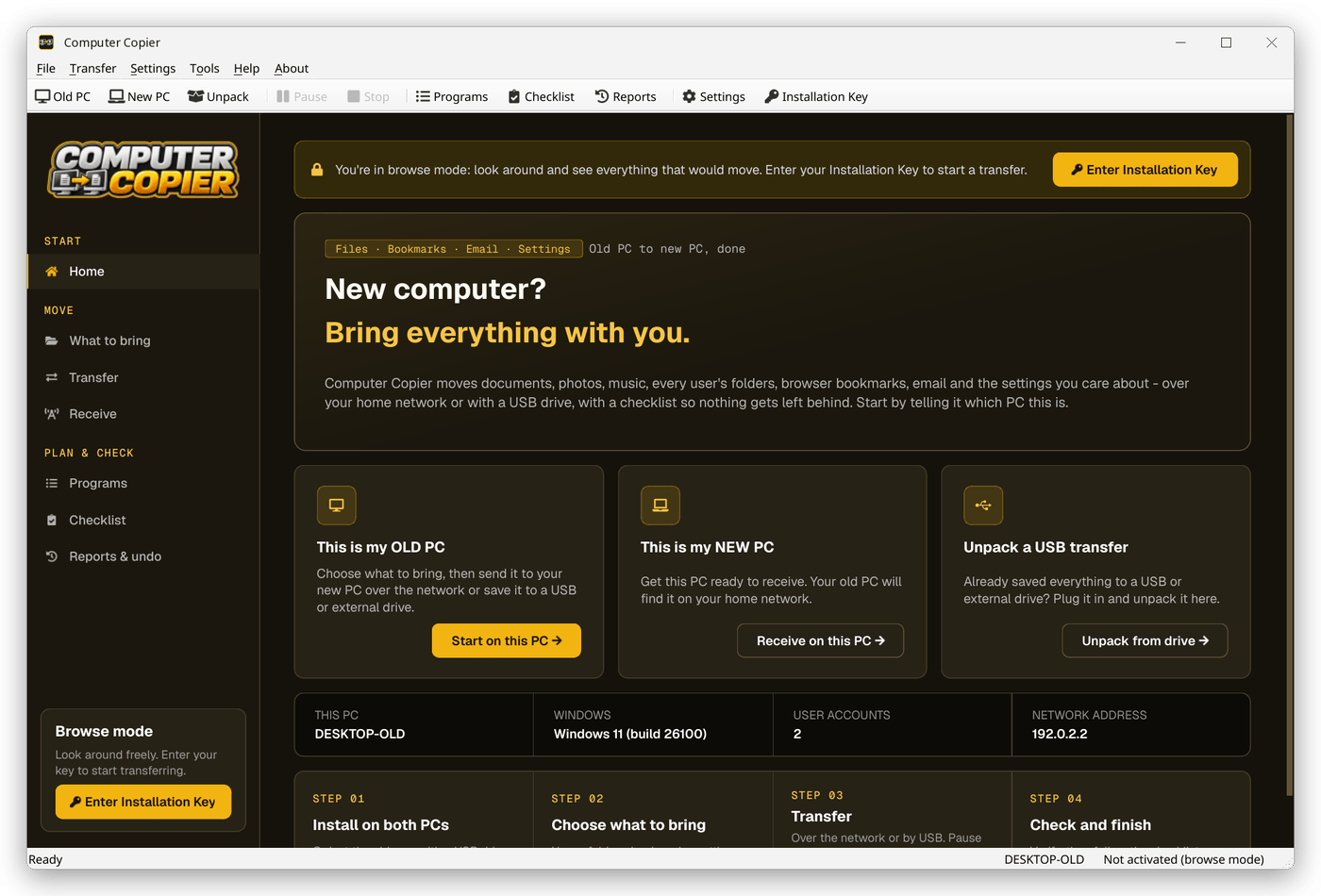
Install on both PCs
Open it on each PC and pick This is my OLD PC or This is my NEW PC. Activate your key on either one.
Choose what to bring
Everything useful is already ticked. Untick what you don't need, or add other folders and drives.
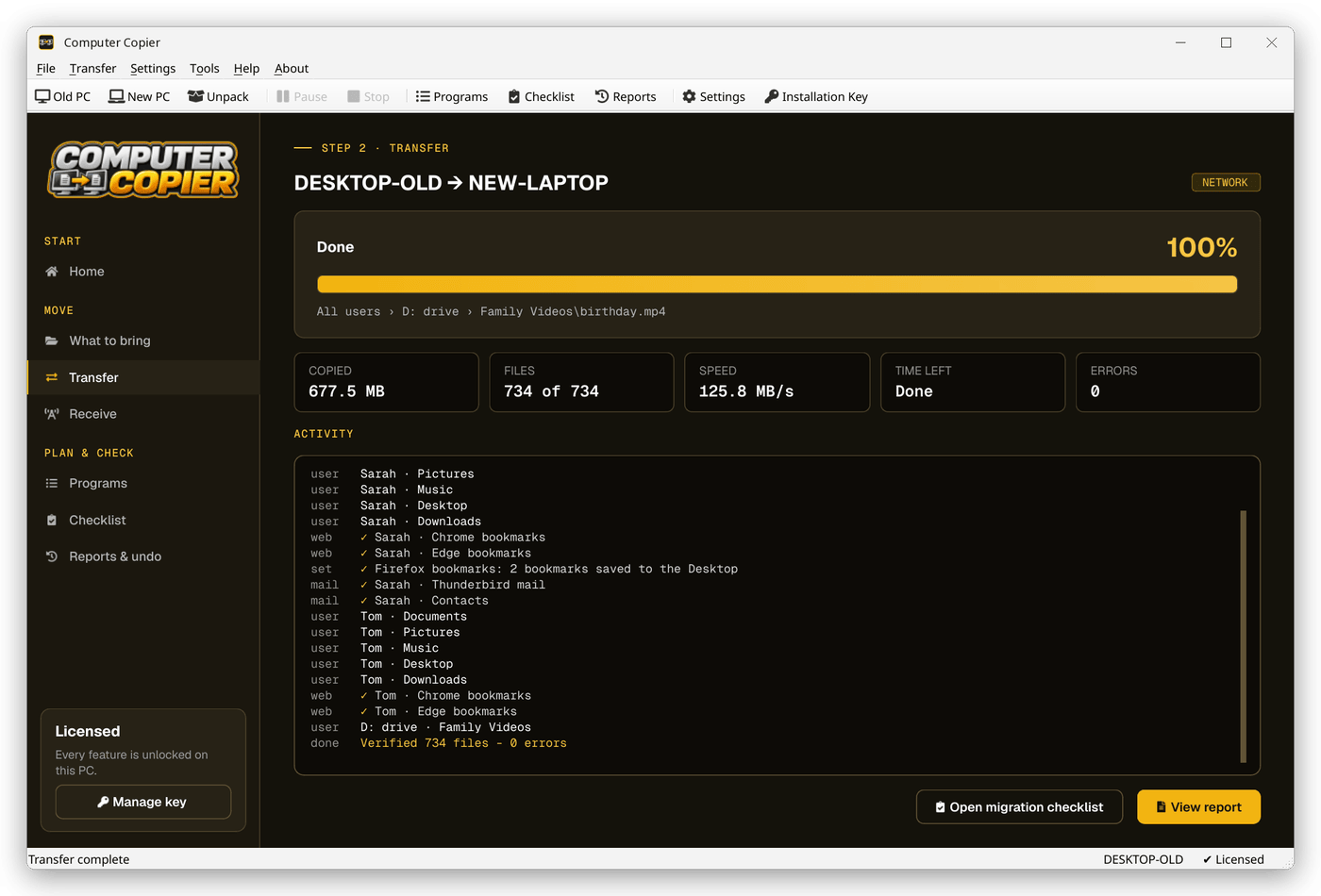
Transfer and check
Send it over your network or by USB. When it's done, read the report and tick off the checklist.
PC transfer software that moves what you actually use.
Dragging folders onto a USB stick misses other users, hidden email files, bookmarks and settings. Computer Copier finds them for you, puts them in the right place on the new PC and checks every file arrived.
Every user's files
Documents, Pictures, Music, Videos, Desktop and Downloads for every account, even when Documents was moved to D: or into OneDrive.
Bookmarks and favorites
Chrome, Edge and Brave bookmarks are added in an "Imported from" folder, so the ones already there are kept. Firefox arrives ready to import.
Outlook and Thunderbird email
Outlook data files (.pst), Thunderbird mail and Windows Contacts come across, so years of saved email come with you.
Settings that feel like home
Wallpaper, saved Wi-Fi networks, mapped drives, network printers, date formats and settings for programs like Notepad++, VS Code and VLC.
PC to PC over your network
Over Wi-Fi or an Ethernet cable, with a 6-digit pairing code. No accounts, no cloud and nothing uploaded.
USB or external drive
Save to a drive and unpack on the new PC. If it fills up you're asked for the next drive, and large files are split across them.
Pause, resume, verify
Stop and start again later and it carries on where it left off. Every file is checked, and anything that couldn't be copied is listed with the reason.
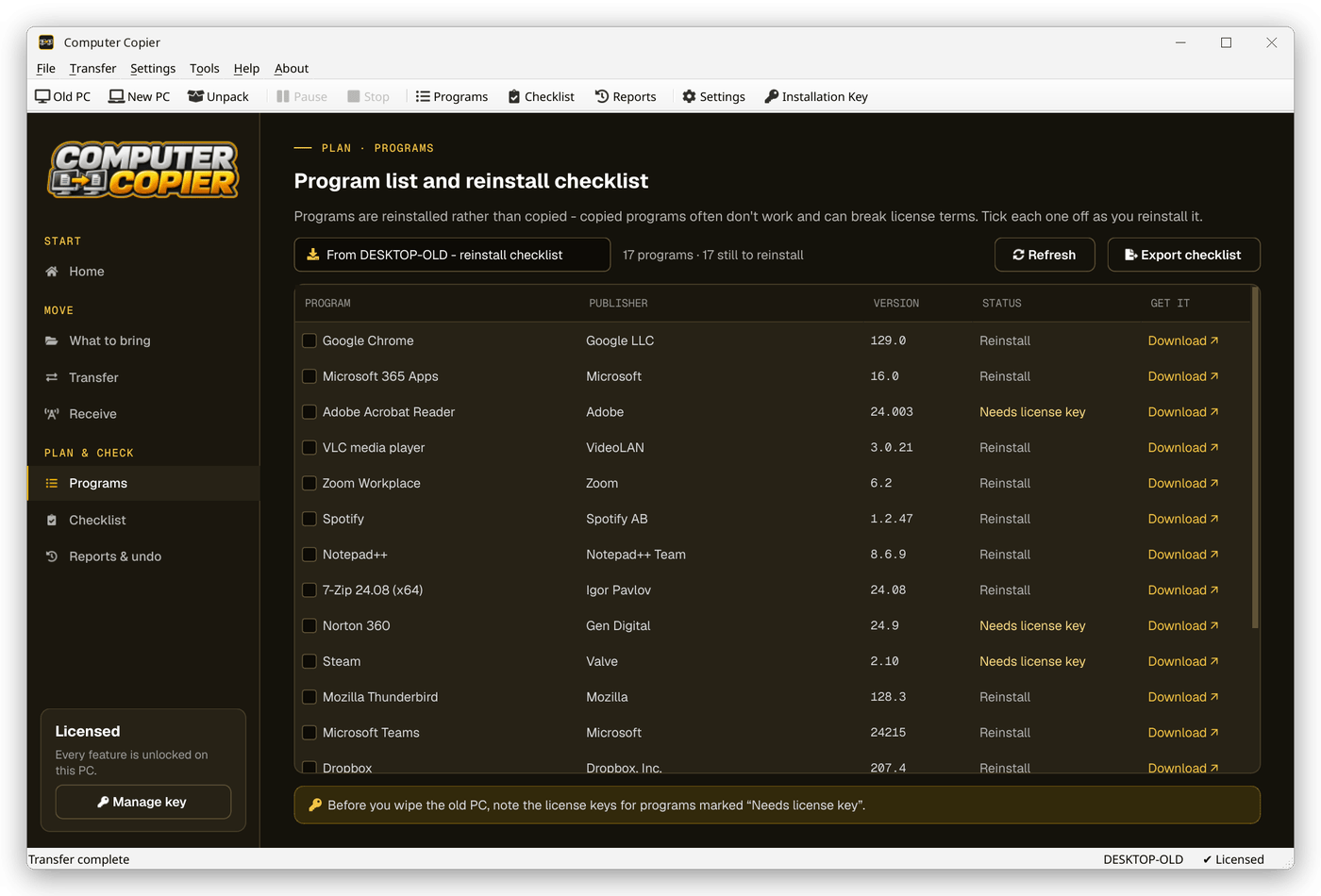
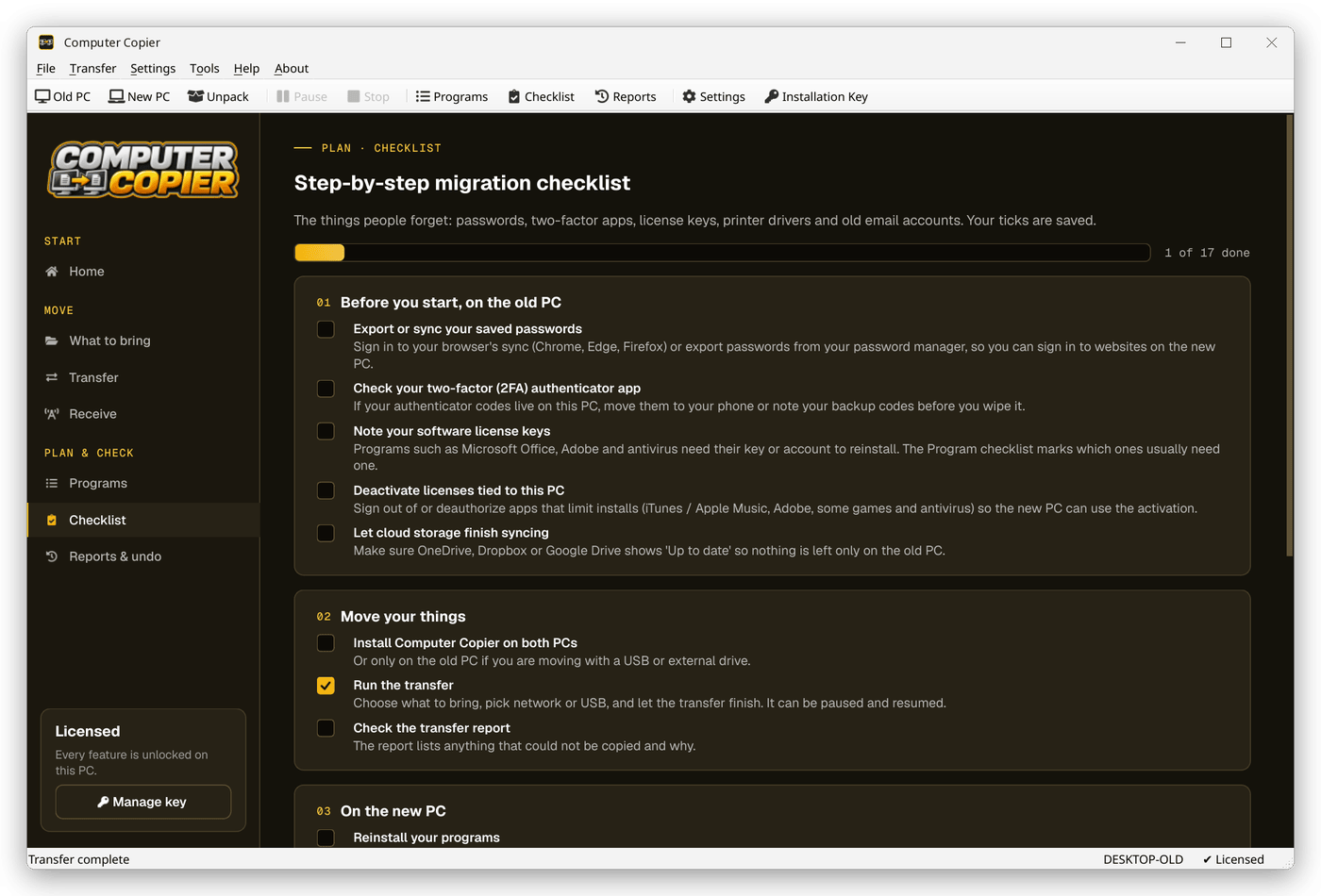
Program and migration checklists
Every program with a download link to reinstall it, plus a checklist of what people forget: passwords, two-factor apps, license keys.
Undo and a printable report
Undo puts the new PC back as it was. Every transfer gets a report you can save as a PDF or print, and the old PC is never changed.
What moves to your new computer, and what doesn't.
A plain list, so you know exactly what to expect on the new PC before you start.
| Item | Moved | Details |
|---|---|---|
| Documents, photos, music, videos | Yes | Every user account, including folders moved to another drive or OneDrive |
| Desktop and Downloads | Yes | For every user account |
| Other folders and drives | Your choice | Add any folder, or tick folders on drives such as D: |
| Browser bookmarks | Yes | Chrome, Edge and Brave merged into your browser; Firefox ready to import; Favorites folder |
| Email and contacts | Yes | Outlook data files (.pst), Thunderbird mail and settings, Windows Contacts |
| Wi-Fi, printers, mapped drives, wallpaper | Your choice | Pick each setting. Every change can be undone |
| Regional formats and program settings | Your choice | Notepad++, VS Code, PuTTY, WinSCP, FileZilla, VLC, Sticky Notes, Office templates and more |
| OneDrive | Optional | Syncs by itself when you sign in; online-only files are never downloaded during the move |
| Installed programs | Checklist | Listed with download links, because programs need reinstalling to work properly |
| Windows itself and drivers | No | Your new PC already has these, matched to its hardware |
Computer Copier vs Windows Backup vs copying by hand.
Windows Backup and a USB stick are free, and for one person's Documents they can be enough. Here's where they fall short on a whole-PC move.
| Computer Copier | Windows Backup | Copying by hand | |
|---|---|---|---|
| Every user account on the PC | Yes | Each personruns their own backup | One by one |
| Music, Videos and Downloads | Yes | Not as standard | Yes |
| Folders on D: and other drives | Yes | No | If you find them |
| Outlook PST and Thunderbird mail | Yes | No | Hidden folders |
| Bookmarks merged into your browsers | Yes | Via browser sign-in | Export and import |
| Wi-Fi networks, printers, mapped drives | Yes | Some settings | No |
| Uses your cloud storage | NoPC to PC | Yeswithin your OneDrive plan | No |
| Every file verified, with Undo | Yes | No | No |
For anyone moving to a new PC.
Home users
Everything from the old family PC on the new laptop, every user included. No expert needed.
Small businesses
Move each person's files, email, bookmarks, mapped drives and printers, and keep a report of what moved.
IT and repair shops
Set up new PCs for customers, hand over a printed transfer report, and undo if anything needs redoing.
One license covers the whole move.
Use it on your old PC and your new PC. For a network transfer the key only needs activating on one of them. No subscription, free updates.
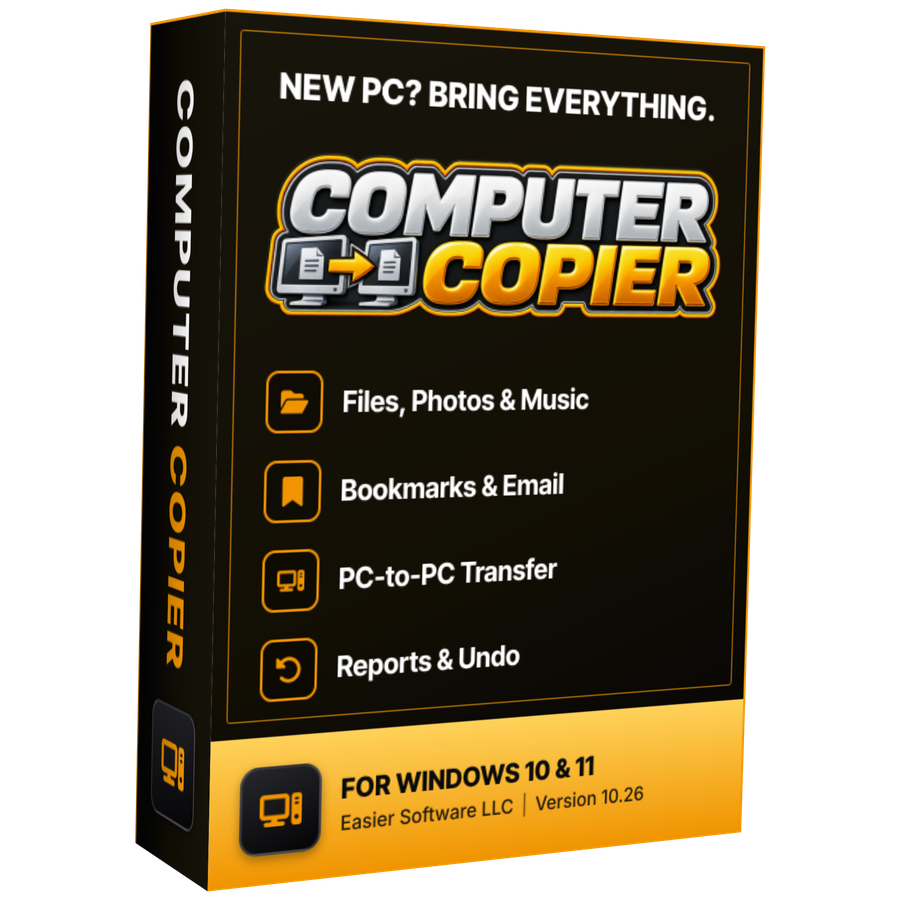
- Transfer sizeUnlimited
- Network & USBIncluded
- Works onWindows 10 & 11 (64-bit)
- UpdatesFree
- Activations2 PCs
- DeliveryDownload + key by email
Checkout
You'll go straight to your download page once payment is confirmed, and we'll email your download link and license key.
Already purchased? Get your download link again
Get our free new PC guides by email.
Three practical guides a month: what to move, where Windows hides your email and bookmarks, and how to fix a transfer that goes wrong. Plus update notices for Computer Copier.
We'll email you a link to confirm first. Unsubscribe any time. Privacy policy
Moving to a new PC: your questions, answered.
How do I transfer everything from my old PC to my new PC?
Install Computer Copier on both PCs, tick what to bring on the old PC (every user's folders, bookmarks, email and settings), then send it over your home network with a 6-digit pairing code or save it to a USB drive and unpack it on the new PC. Every file is checked against the original, and programs are listed with download links so you can reinstall them.
Can I transfer files from Windows 10 to Windows 11?
Yes. Computer Copier works between 64-bit Windows 10 and Windows 11 in either direction, over your home network or with a USB or external drive.
Does Computer Copier transfer programs and apps?
No. Copied programs often stop working and can break license terms, so Computer Copier lists every program on the old PC with a download link, shows which are already on the new PC and flags the ones that usually need a license key.
Can I transfer files from PC to PC over Wi-Fi?
Yes. With both PCs on the same home network, by Wi-Fi or Ethernet cable, files go directly from one PC to the other. Nothing is uploaded to the internet and no account is needed. A pairing code makes sure your files only go to your new PC.
Will it move my Outlook email and browser bookmarks?
Yes. Outlook data files (.pst), Thunderbird mail and Windows Contacts come across. Chrome, Edge and Brave bookmarks are added to the browser on the new PC in an Imported folder, and Firefox bookmarks arrive ready to import.
Is it a one-time purchase, and does one license cover both PCs?
Yes. It is $29.95 once with free updates and no subscription. For a network transfer the Installation Key only needs activating on one of the two PCs; for a USB transfer, activate it on the old PC.
More questions? See the user guide or our guides.
Your new PC, already feeling like home.
Files, users, bookmarks, email and settings: transferred, checked and undoable. One license, no subscription.
Get Computer Copier · $29.95