
Welcome to Computer Copier
Computer Copier moves the things that matter from your old Windows PC to your new one - documents, photos, music, videos, every user's folders, browser bookmarks, email files and selected Windows settings - over your home network or with a USB drive.
What Computer Copier does
- Finds your things. It looks at every user account on the old PC (Documents, Pictures, Music, Videos, Desktop and Downloads), including folders that were moved to another drive or into OneDrive, plus other drives such as
D:\. - Lets you choose. Everything useful is ticked; untick what you don't need or add other folders.
- Moves it two ways. Directly over your home network (Wi-Fi or cable, no accounts or cloud), or saved to a USB / external drive or a transfer file that you unpack on the new PC. Big moves can be split across several drives.
- Checks every file. Each copied file is compared with the original, and transfers can be paused and resumed.
- Brings bookmarks, email and settings. Chrome, Edge, Brave and Firefox bookmarks; Outlook data files, Thunderbird and Windows Contacts; wallpaper, saved Wi-Fi networks, mapped drives, network printers, regional formats and settings for supported programs.
- Leaves the old PC untouched. Nothing is moved or deleted on the old PC - it is only read.
- Helps you finish. A program reinstall checklist, a step-by-step migration checklist, a printable transfer report and a full Undo.
Computer Copier does not copy installed programs. Copied programs often don't work and can break license terms, so it lists them with download links instead - see Program checklist.
System requirements
| Item | Requirement |
|---|---|
| Windows | Windows 10 or Windows 11, 64-bit. The installer will not run on older versions of Windows. |
| Administrator rights | Computer Copier asks for administrator permission when it starts (a Windows "Do you want to allow this app to make changes" prompt). This lets it read every user account and apply settings such as Wi-Fi networks and printers. |
| Internet connection | Needed to activate your Installation Key, check your license and check for updates. Transfers themselves don't use the internet. |
| For a network transfer | Both PCs on the same home network (same Wi-Fi or the same router), with Computer Copier installed on both. |
| For a USB transfer | A USB stick or external drive (or several, if your files don't fit on one). Computer Copier only needs to be installed on the old PC to save the transfer, and on the new PC to unpack it. |
| Disk space | Enough free space on the new PC for everything you choose to bring. The What to bring screen shows the total size. |
Installation
Install Computer Copier on your old PC, and also on your new PC if you're moving over the network or unpacking a USB transfer.
- Download the installer from your download page and run ComputerCopierSetup-10.26.exe.
- If Windows shows "Windows protected your PC", click More info and then Run anyway. Windows can show this for software it hasn't seen many times before.
- Click Yes when Windows asks for permission to make changes.
- Choose your options. Allow Computer Copier through Windows Firewall is needed for network transfers - leave it ticked. You can also add a desktop shortcut.
- Click Install, then Finish. Computer Copier can start straight away.
Computer Copier is installed in C:\Program Files\Easier Software\Computer Copier and appears in the Start menu.
Starting Computer Copier
Open Computer Copier from the Start menu or the desktop shortcut, and click Yes when Windows asks for permission.
The splash screen
A splash screen shows for about four seconds with a progress bar while Computer Copier loads. In the background it quietly checks your Installation Key with the license server if you're online - this never stops the program from opening.
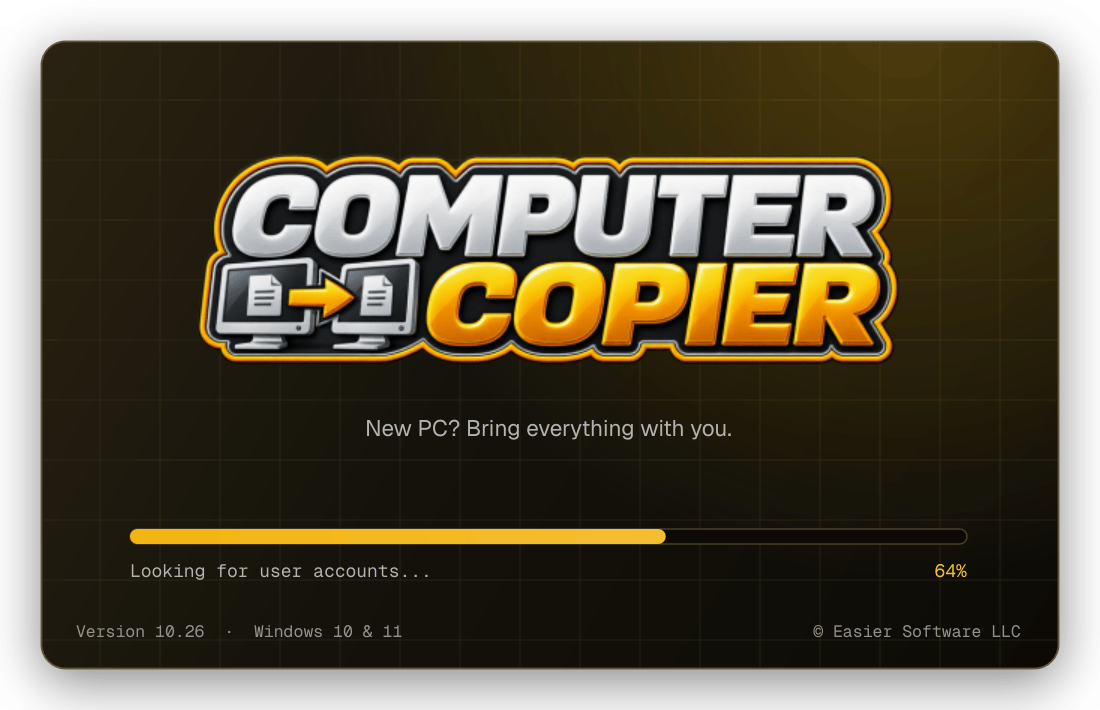
Computer Copier opens even without an Installation Key, in browse mode: you can look around, scan your PC and see exactly what would move. A key is needed to start a transfer - see Installation Keys.
Interface overview
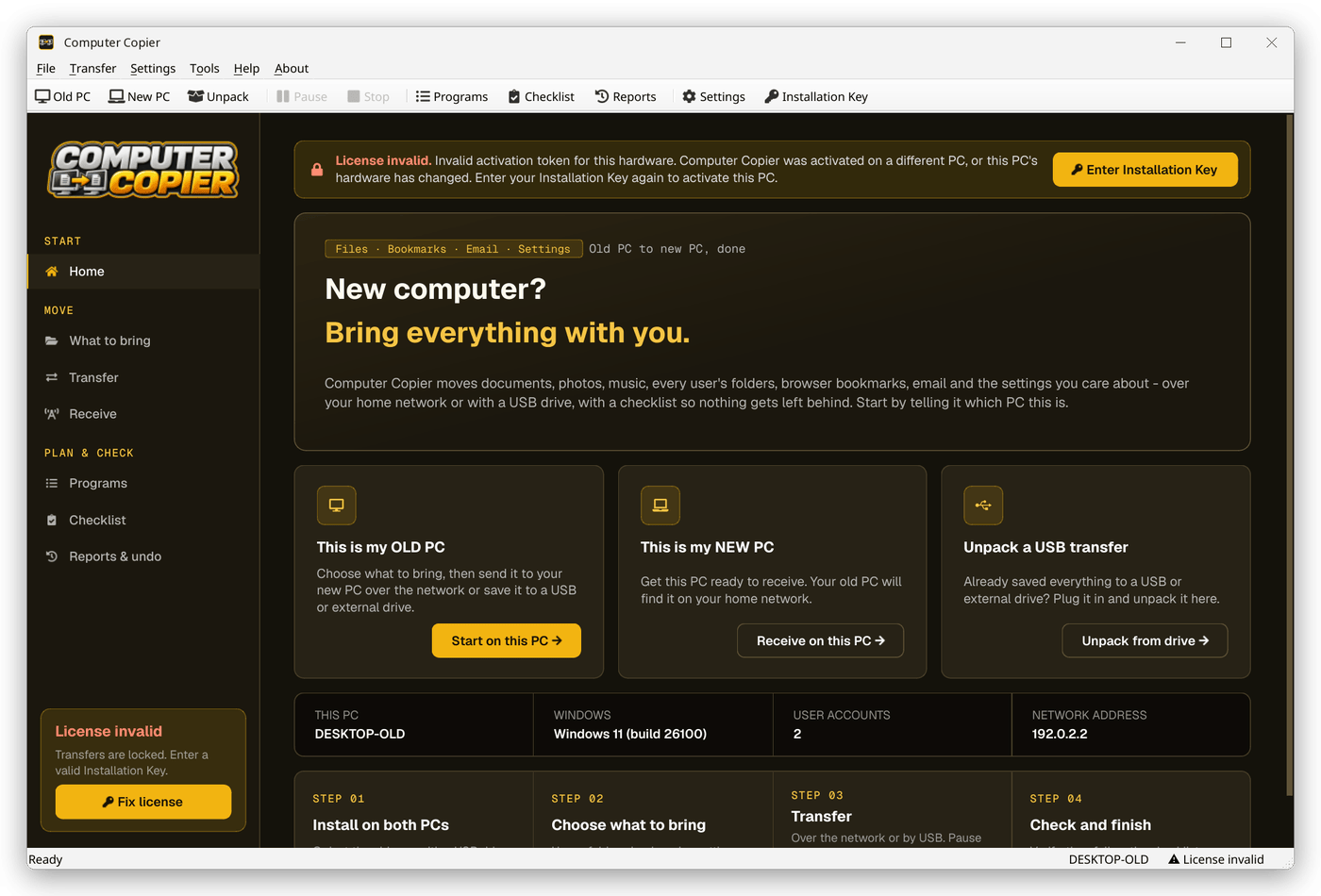
The window has the usual Windows menu bar, toolbar and status bar around a dark main area.
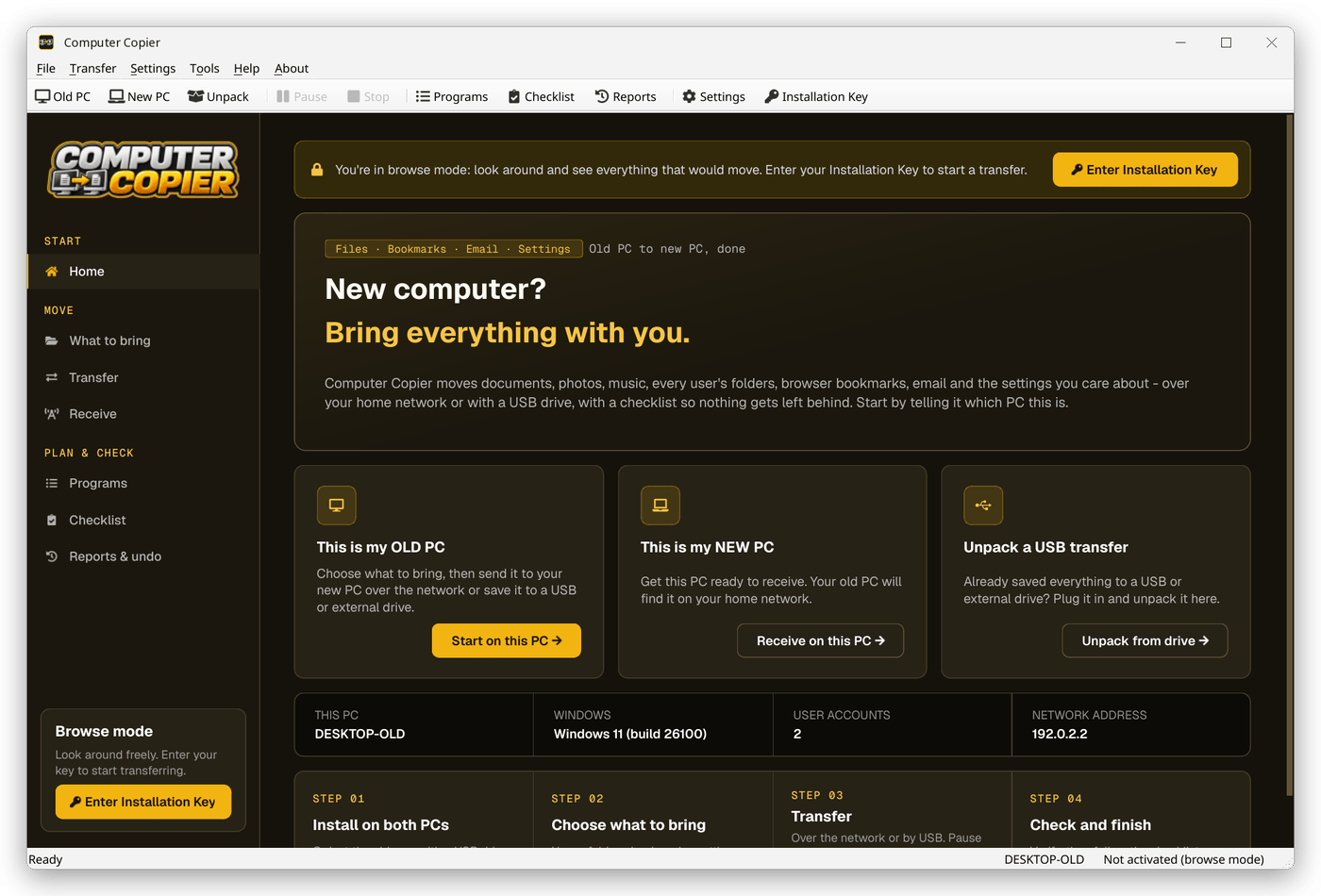
- 1Menu bar - File, Transfer, Settings, Tools, Help and About. See Menus.
- 2Toolbar - Old PC, New PC, Unpack, Pause, Stop, Programs, Checklist, Reports, Settings and Installation Key.
- 3Sidebar - Home, What to bring, Transfer, Receive, Programs, Checklist and Reports & undo.
- 4License box (bottom of the sidebar) - shows Licensed, Browse mode or License invalid, with a button to enter or manage your key.
- 5Home screen - the three ways to start: This is my OLD PC, This is my NEW PC and Unpack a USB transfer, plus this PC's name, Windows version, number of user accounts and network address.
- 6Status bar - what Computer Copier is doing, this PC's name and your license status.
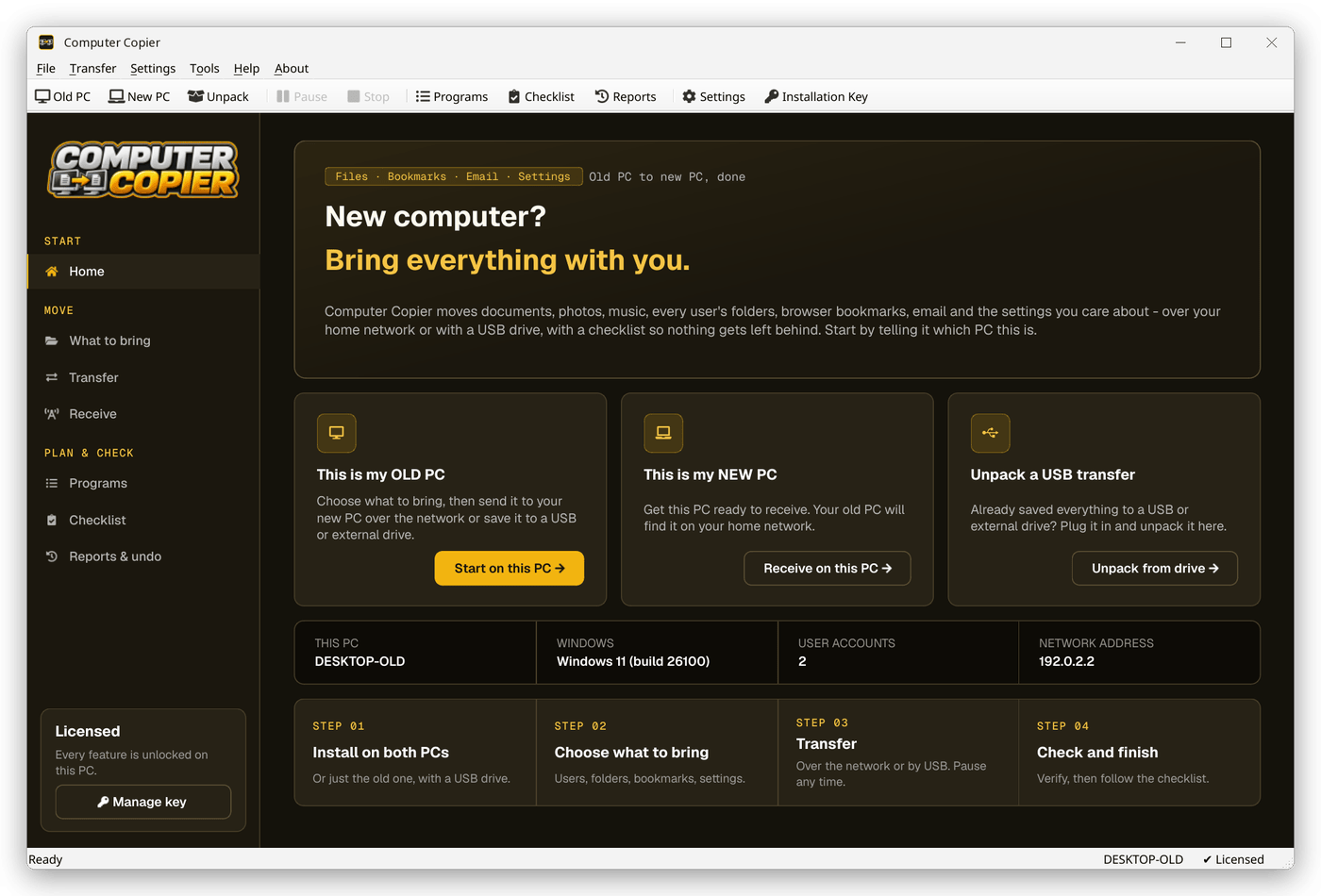
Main screen when licensed
Once your key is activated the banner disappears and the license box says Licensed.
Main screen when the license is invalid
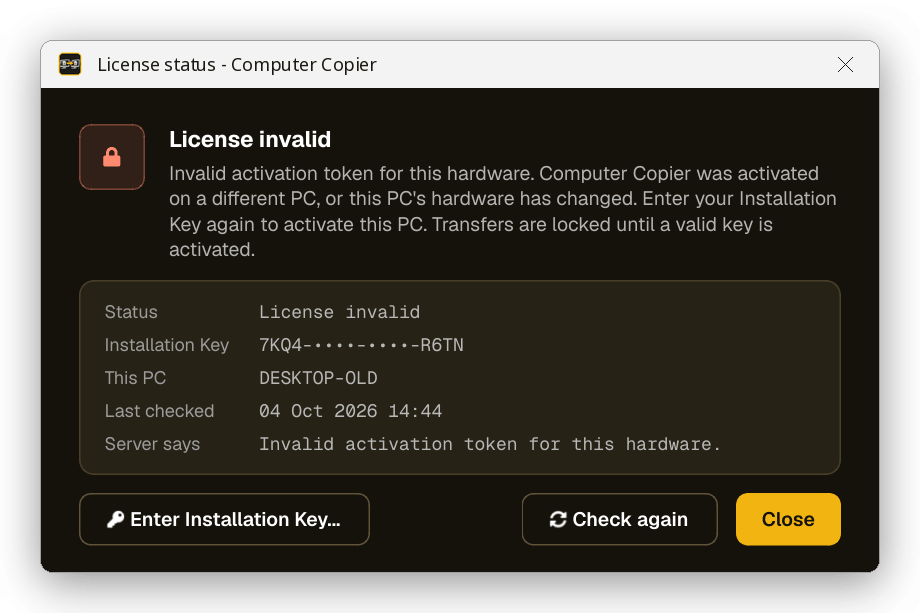
If your license can no longer be used on this PC, a red License invalid banner explains why and the license box offers Fix license. See License Invalid.
Menus
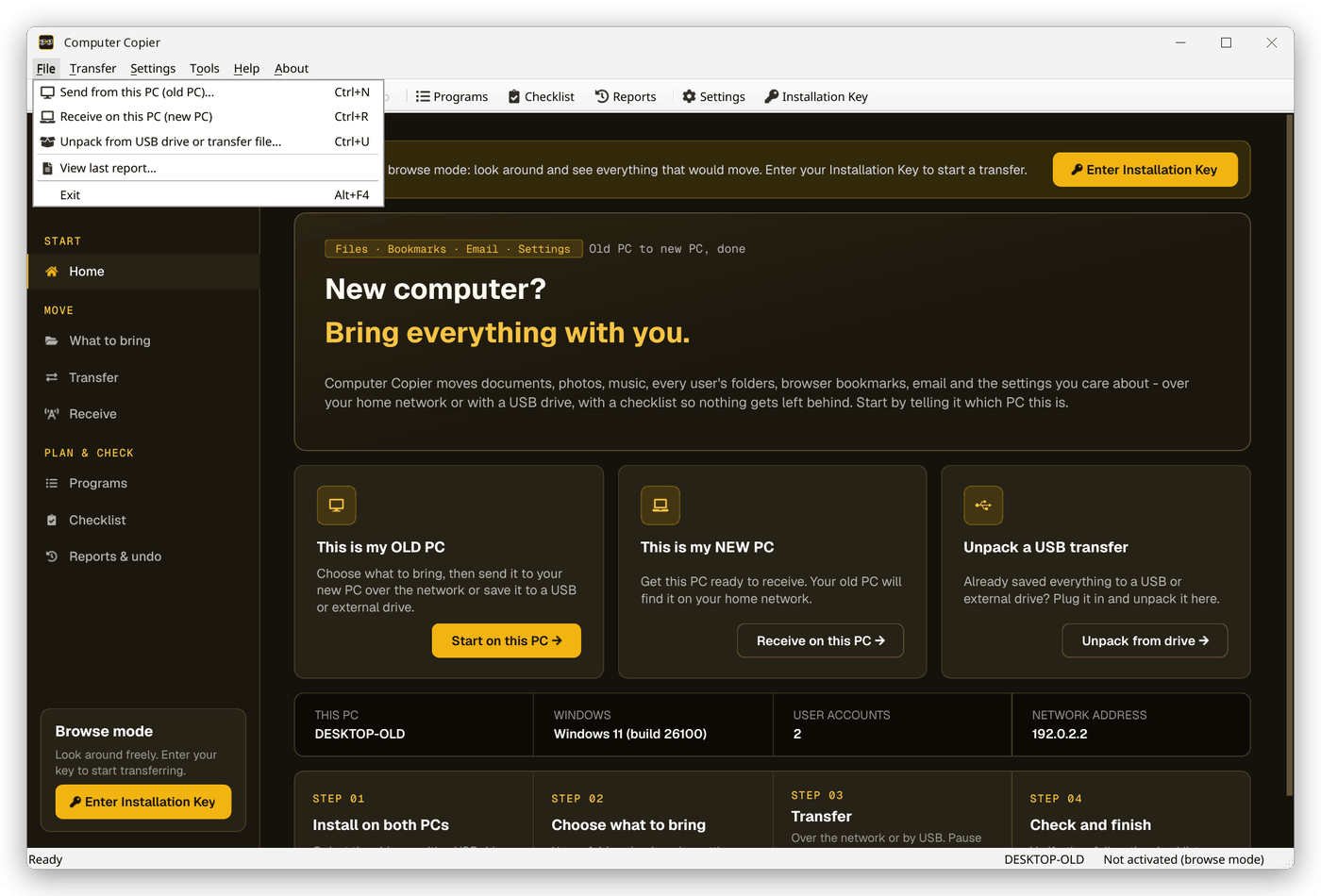
File menu
| Command | What it does |
|---|---|
| Send from this PC (old PC)... Ctrl+N | Opens What to bring so you can choose and send. |
| Receive on this PC (new PC) Ctrl+R | Gets this PC ready to receive over the network and shows the pairing code. |
| Unpack from USB drive or transfer file... Ctrl+U | Restores a transfer saved on a drive or in a folder. |
| View last report... | Opens the report for the most recent transfer. |
| Exit Alt+F4 | Closes Computer Copier (it asks first if a transfer is running). |
Transfer menu
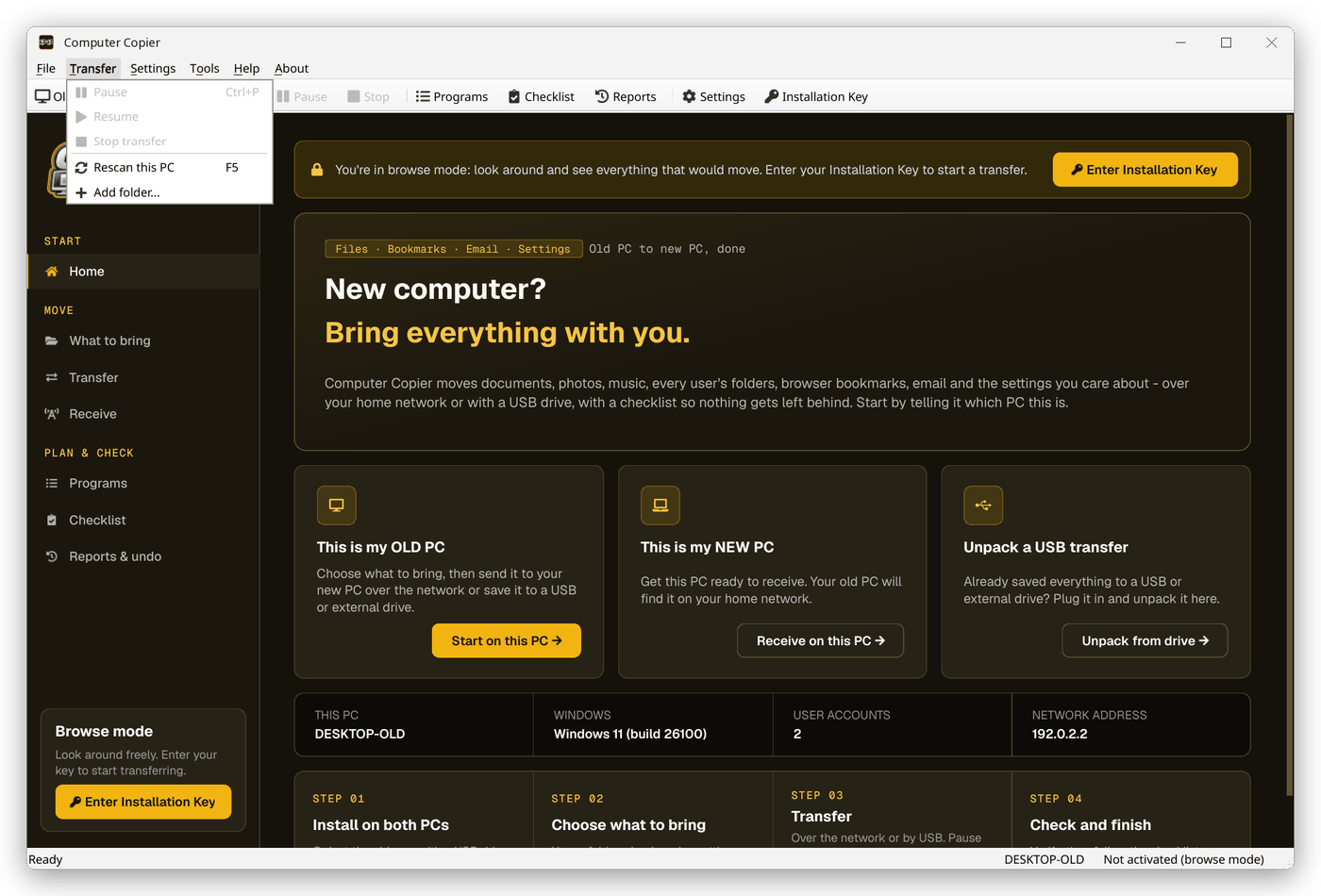
Pause (Ctrl+P), Resume and Stop transfer control a running transfer. Rescan this PC (F5) looks for files again and Add folder... adds an extra folder to bring.
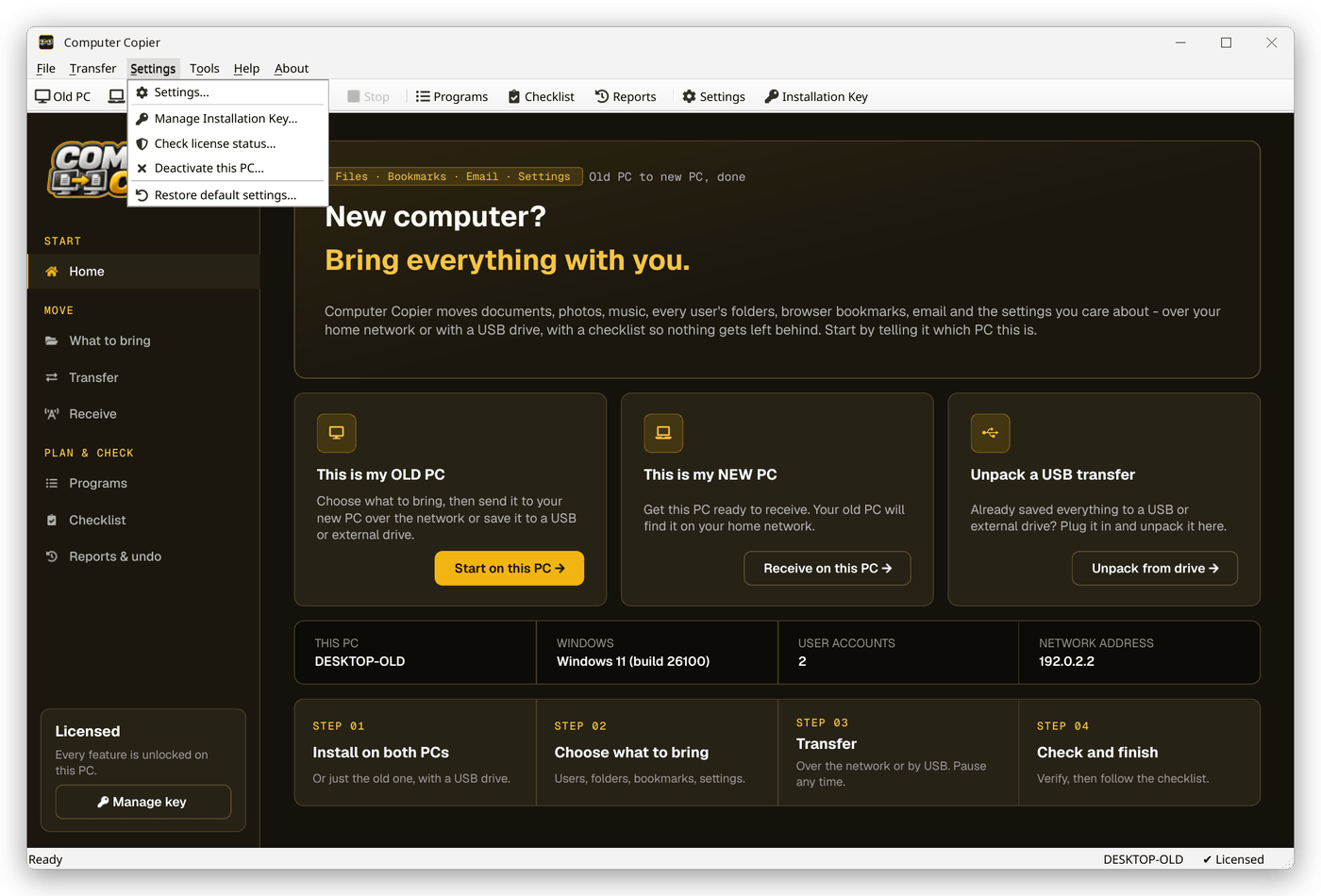
Settings menu
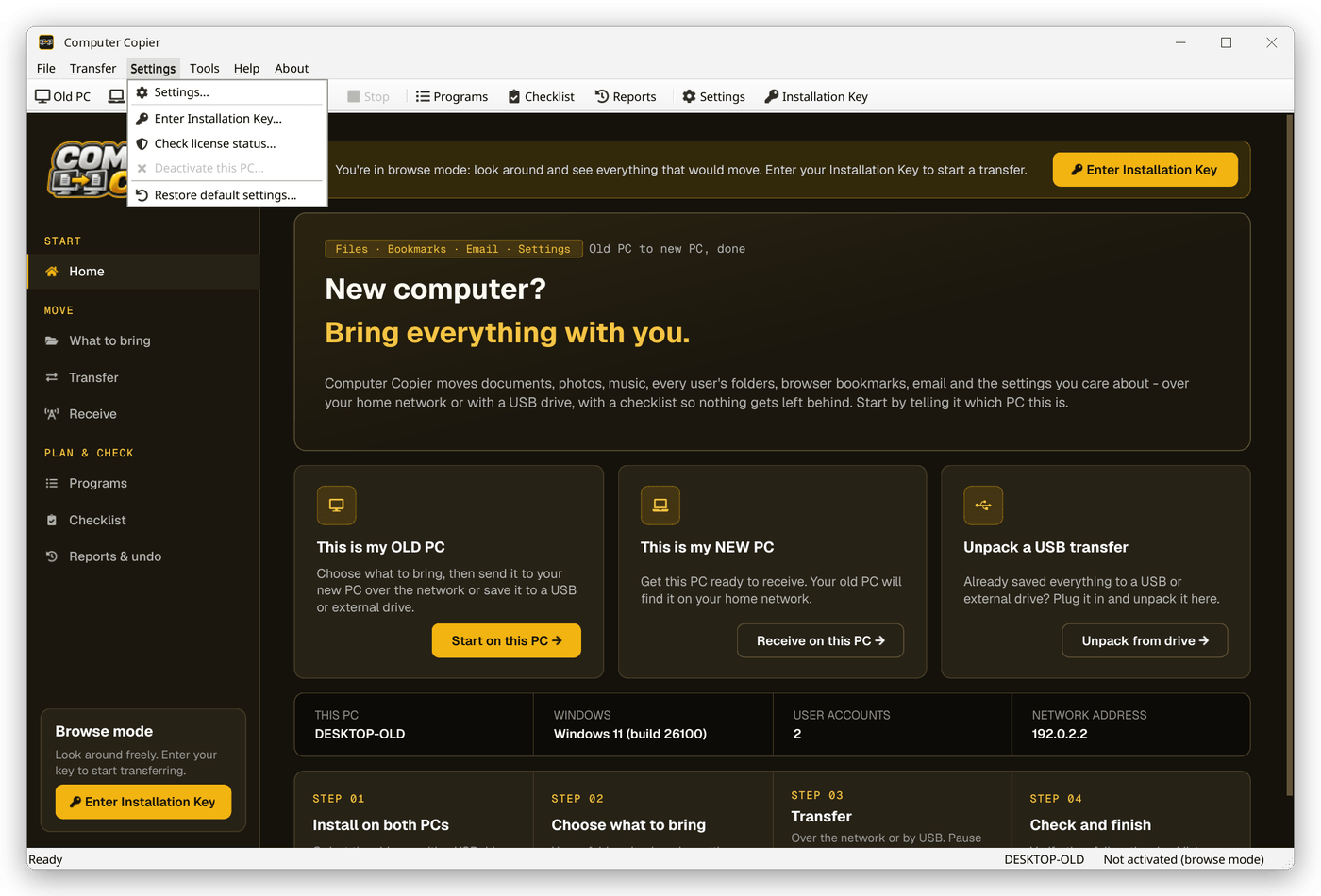
Settings... opens the Settings window. The menu also has Enter Installation Key... (shown as Manage Installation Key... when you're licensed), Check license status..., Deactivate this PC... (available only when this PC is activated) and Restore default settings....
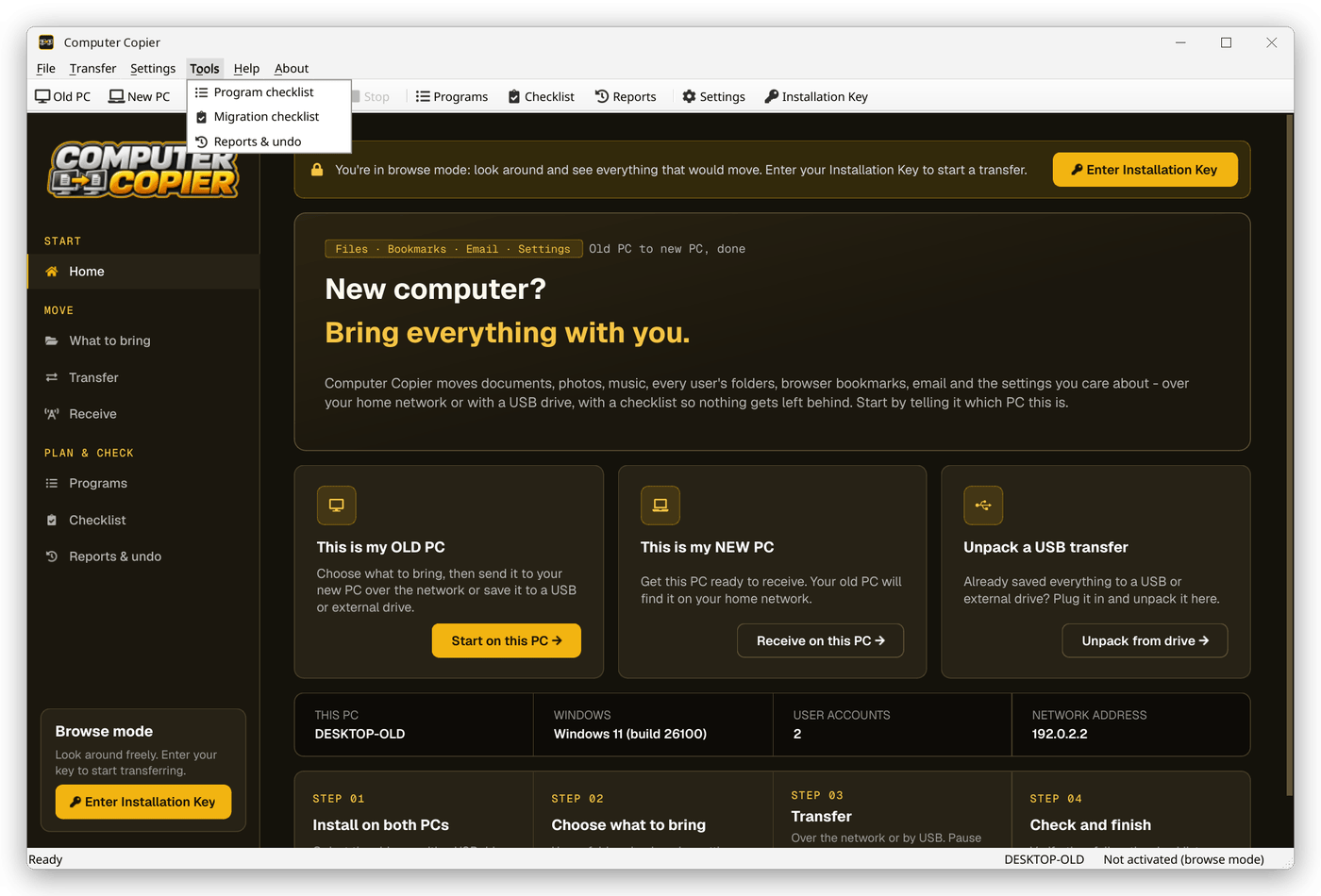
Tools menu
Quick ways to the Program checklist, Migration checklist and Reports & undo.
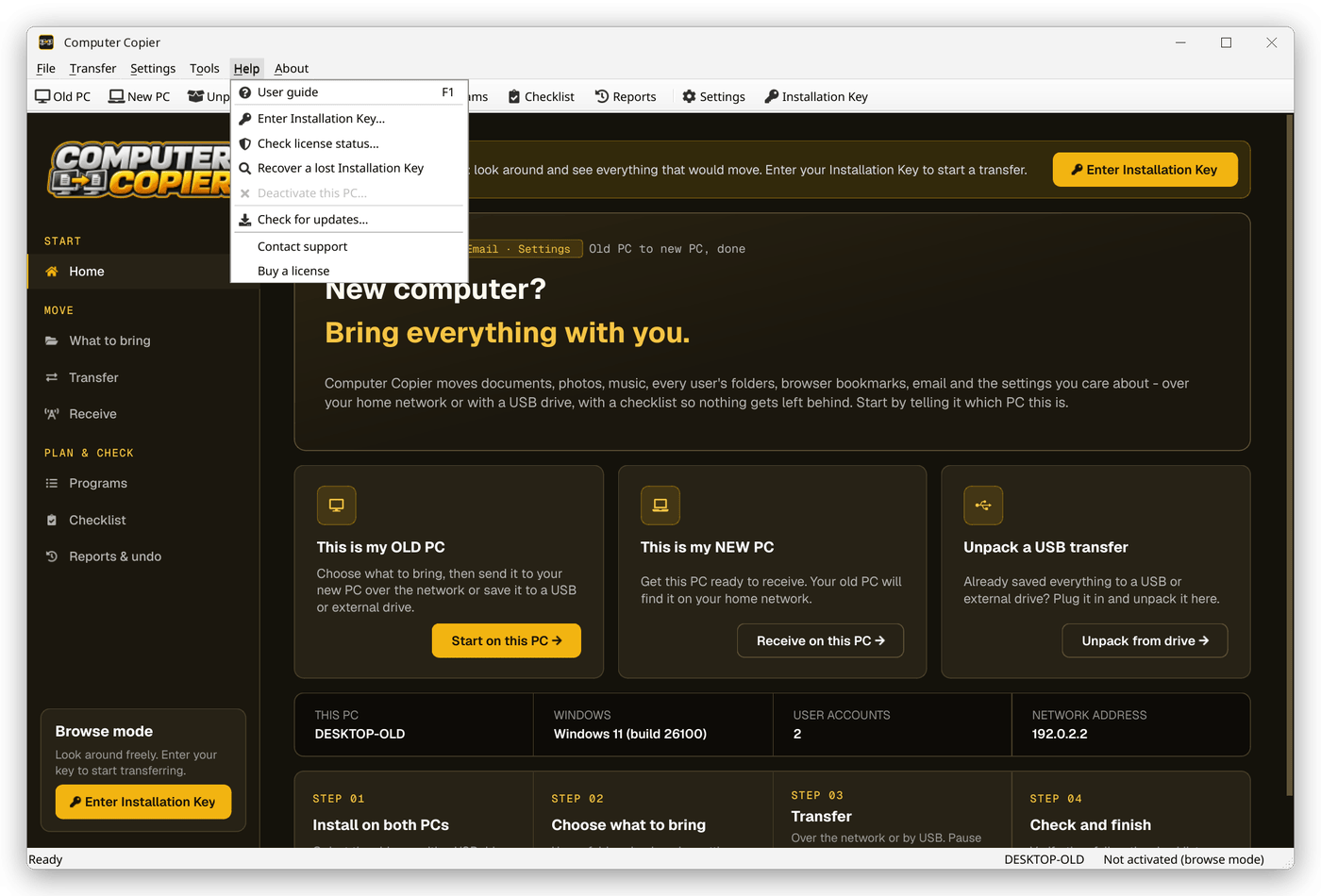
Help menu
| Command | What it does |
|---|---|
| User guide F1 | Opens this guide in your web browser. |
| Enter Installation Key... | See Activating Computer Copier. |
| Check license status... | See Checking license status. |
| Recover a lost Installation Key | Opens installationkey.com. |
| Deactivate this PC... | See Deactivating a PC. |
| Check for updates... | See Checking for updates. |
| Contact support | Opens the Easier Software support page. |
| Buy a license | Opens the Computer Copier website's buy section. |
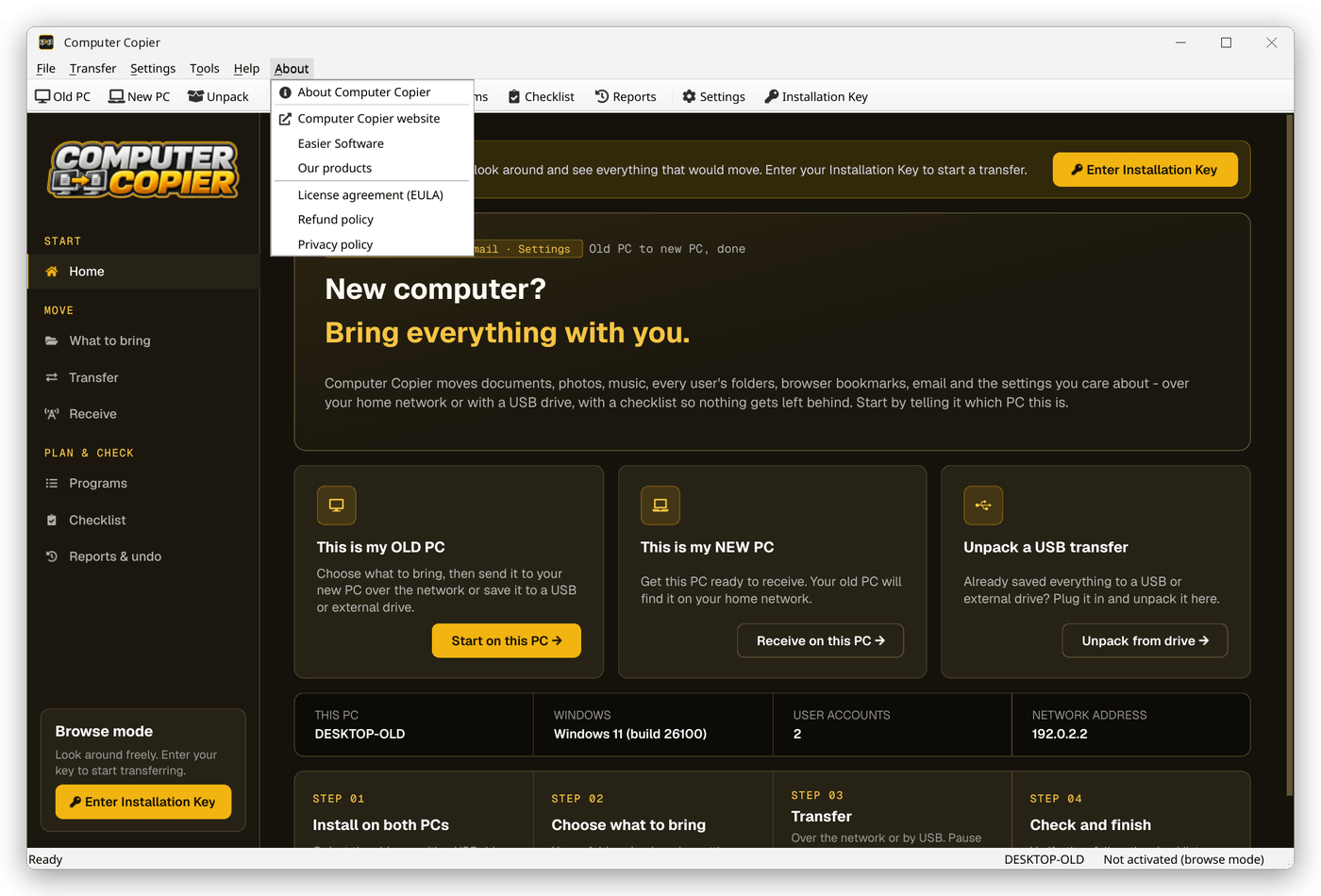
About menu
About Computer Copier shows your version and license details (see About Computer Copier). The other items open the Computer Copier website, Easier Software, our other products, the License Agreement (EULA), the Refund Policy and the Privacy Policy in your browser.
Old PC or new PC?
Choose how you'll move your things, then follow the steps for each PC:
| Method | On the old PC | On the new PC |
|---|---|---|
| Network (both PCs at home, same Wi-Fi or router) | This is my OLD PC › choose what to bring › Network | This is my NEW PC - start this first |
| USB drive (or external drive) | This is my OLD PC › choose what to bring › USB drive | Unpack a USB transfer |
| Transfer file (any folder, e.g. a NAS or network share) | This is my OLD PC › choose what to bring › Transfer file | Unpack a USB transfer and choose that folder |
The network is usually the easiest: no drive to fill up, and the new PC puts everything in place as it arrives.
Choosing what to bring
On the old PC click This is my OLD PC (or File › Send from this PC). Computer Copier scans the PC - this usually takes a few seconds, longer for very large folders - and lists everything it found.
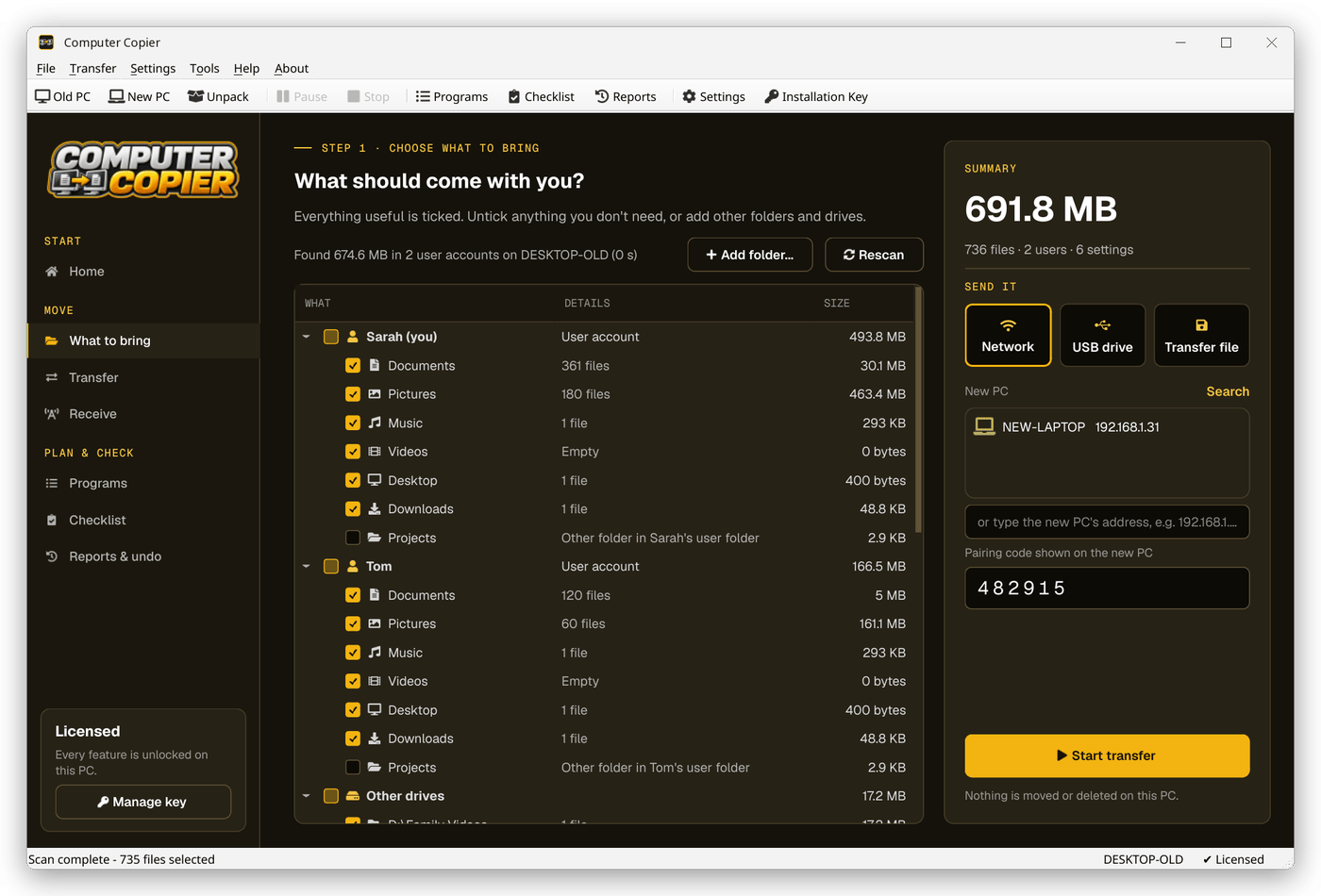
What's in the list
| Group | What it contains | Ticked to start with? |
|---|---|---|
| Each user account | Documents, Pictures, Music, Videos, Desktop and Downloads. If a folder was moved (for example Documents on D:\ or inside OneDrive) the real location is used and shown. | Yes |
| Other folders in a user's folder | For example a Projects folder directly inside the user folder. | No |
| OneDrive | The user's OneDrive folder. It syncs by itself when you sign in to OneDrive on the new PC. | No |
| Other drives | Folders on other internal drives such as D:\ (system folders are left out). | No |
| Browser bookmarks & favorites | Chrome, Edge and Brave bookmarks, Firefox bookmarks and the Favorites folder. | Yes |
| Email & contacts | Outlook data files (.pst), Thunderbird mail and settings, Windows Contacts. | Yes |
| Windows & program settings | Wallpaper, desktop layout, saved Wi-Fi networks, mapped network drives, printers, regional settings and supported program settings. | Yes, except Desktop layout |
Selecting and removing items
- Untick anything you don't want; tick anything you do. Ticking or unticking a user (or group) does all of its items at once.
- Add folder... adds any other folder. It is placed in the matching user's folder on the new PC if it was inside one, otherwise on the same drive letter.
- Rescan (F5) looks again, for example after you've added files.
Some files are always skipped: Windows thumbnail files and desktop.ini, and files matching the exclusions in Settings › Transfer (by default Thumbs.db; desktop.ini; ~$*; *.tmp). Online-only OneDrive files are skipped too, because opening them would download them.
Choosing how to send it
On the right, pick Network, USB drive or Transfer file, fill in the details and click Start transfer. Nothing is moved or deleted on the old PC.
Settings are applied for the person using Computer Copier on the new PC. Wallpaper, regional settings, mapped drives and program settings go to the Windows account that runs Computer Copier on the new PC. Wi-Fi networks and printers are added for the whole PC.
Transfer over the network
Both PCs must be on the same home network. Files go straight from one PC to the other - nothing is uploaded to the internet and no account is needed.
1. On the new PC: get ready to receive
Click This is my NEW PC (or File › Receive on this PC). A 6-digit pairing code appears, together with this PC's name and network address.
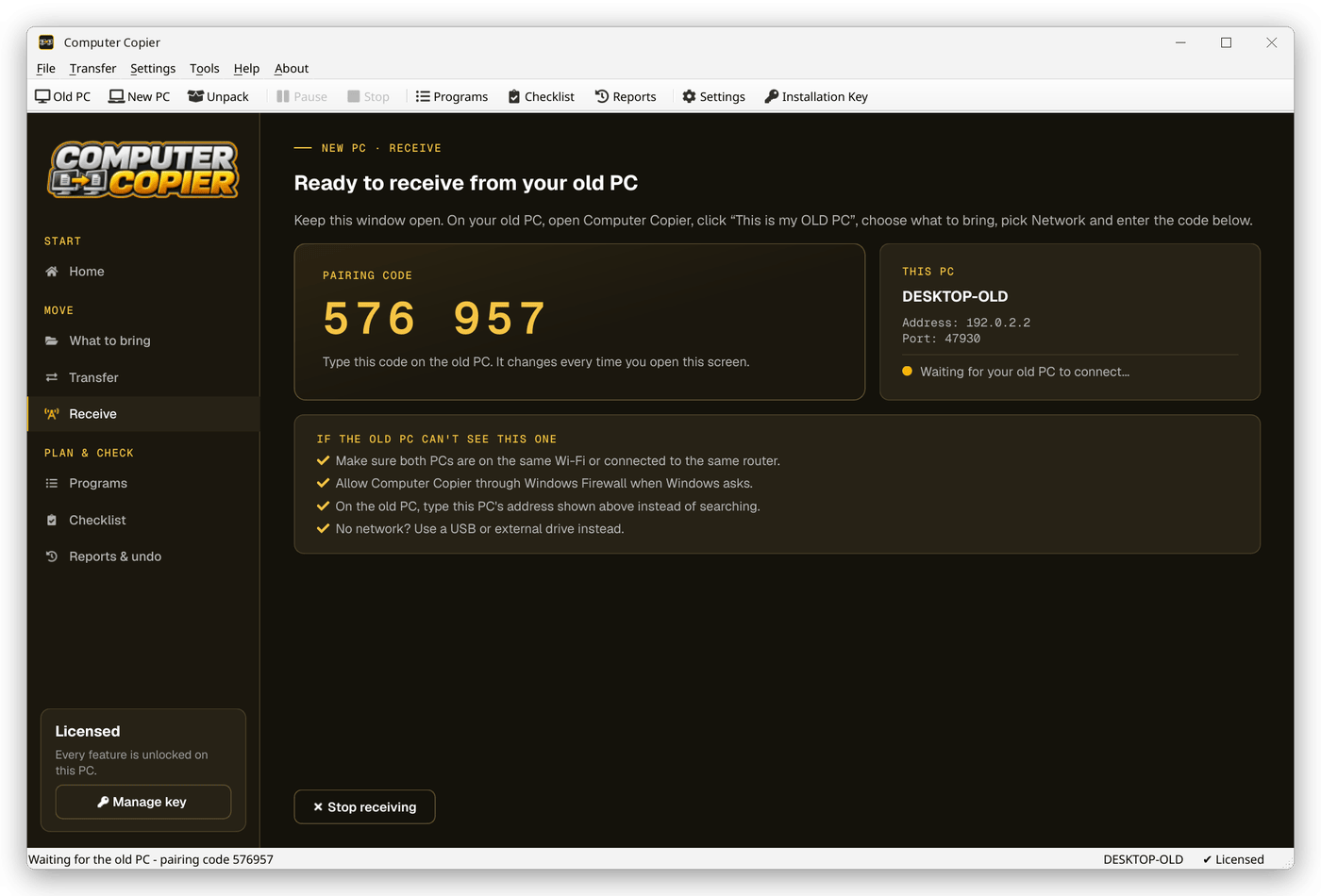
2. On the old PC: send
- Choose what to bring and click Network.
- Your new PC appears in the New PC list (click Search to look again). If it doesn't, type the address shown on the new PC, for example
192.168.1.31. - Type the pairing code shown on the new PC.
- Click Start transfer. Both PCs switch to the transfer screen.
The pairing code stops anyone else on your network from sending files to your new PC. You can turn it off in Settings › Network, but we recommend leaving it on.
An Installation Key is needed on one of the two PCs for a network transfer - see Installation Keys.
If the old PC can't find the new one, see Troubleshooting.
Transfer by USB drive or transfer file
Saving to a drive (old PC)
- Plug in your USB stick or external drive.
- Choose what to bring, click USB drive (or Transfer file to use any folder), then Choose... and pick the drive or folder. The free space is shown underneath.
- Click Start transfer. Computer Copier creates a folder called
Computer Copier Transfer - <your old PC's name>with aDisk 1folder inside.
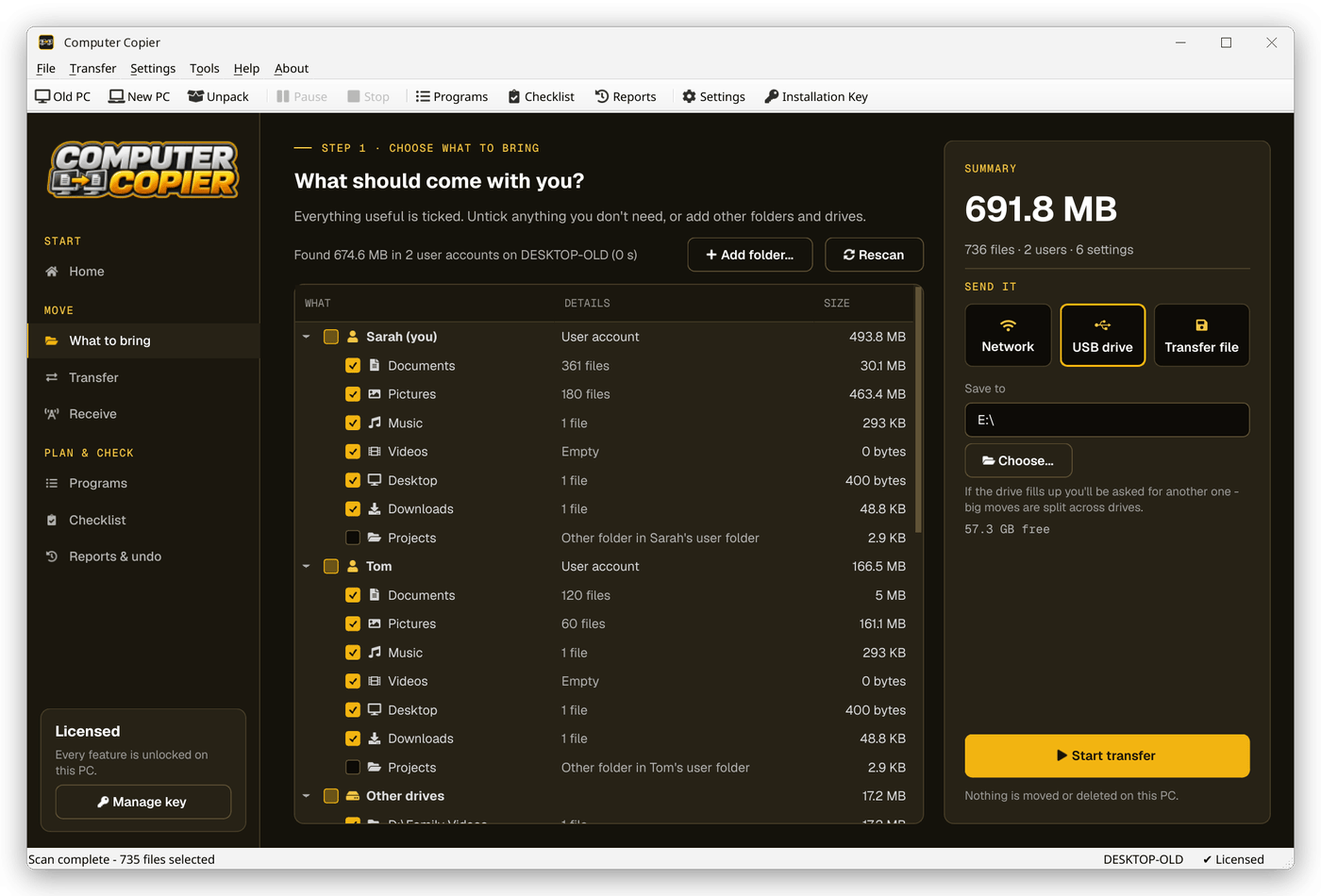
When the drive is full
If everything doesn't fit, Computer Copier asks for another drive and carries on with Disk 2 there (and so on). Large files are split across drives automatically.
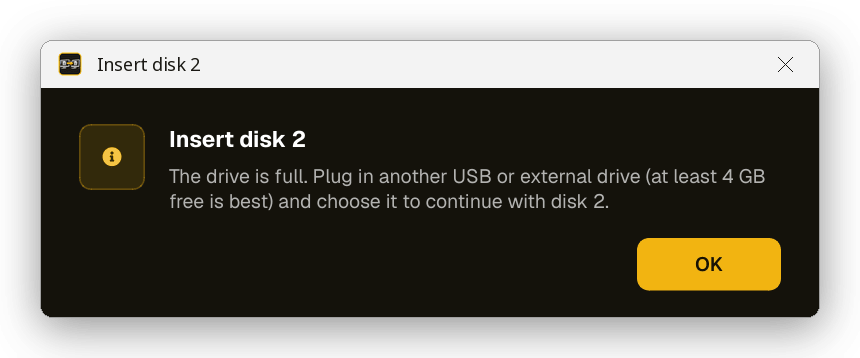
Label your drives Disk 1, Disk 2... as you go. If you choose a drive that doesn't have enough free space, Computer Copier asks again. A little space is left free on each drive (64 MB, set in Settings › Transfer).
Unpacking on the new PC
- Plug in the drive (Disk 1 first) and click Unpack a USB transfer (or File › Unpack).
- Choose the drive, the
Computer Copier Transfer - ...folder, or aDiskfolder. Computer Copier tells you how many files it found, from which PC and when it was saved. - Click Yes. If the transfer used more than one drive, you'll be asked for each one in turn. (If you copied all the
Diskfolders into one place, they're found automatically.)
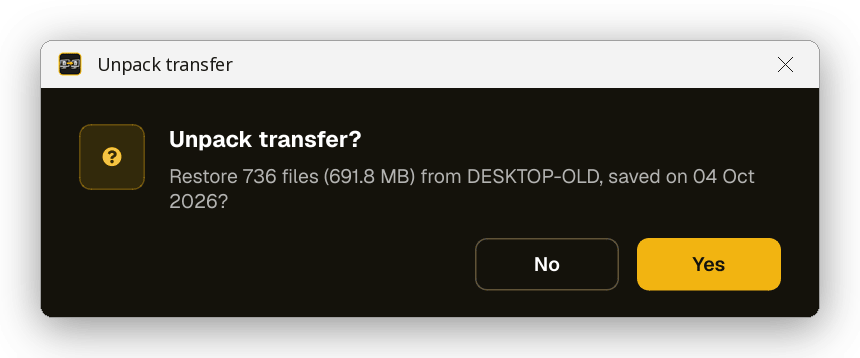
Saving a transfer to a drive needs an Installation Key on the old PC. A transfer saved by an activated copy can be unpacked on the new PC without entering the key there.
Understanding transfer progress
The Transfer screen shows how far the transfer has got, on both PCs.
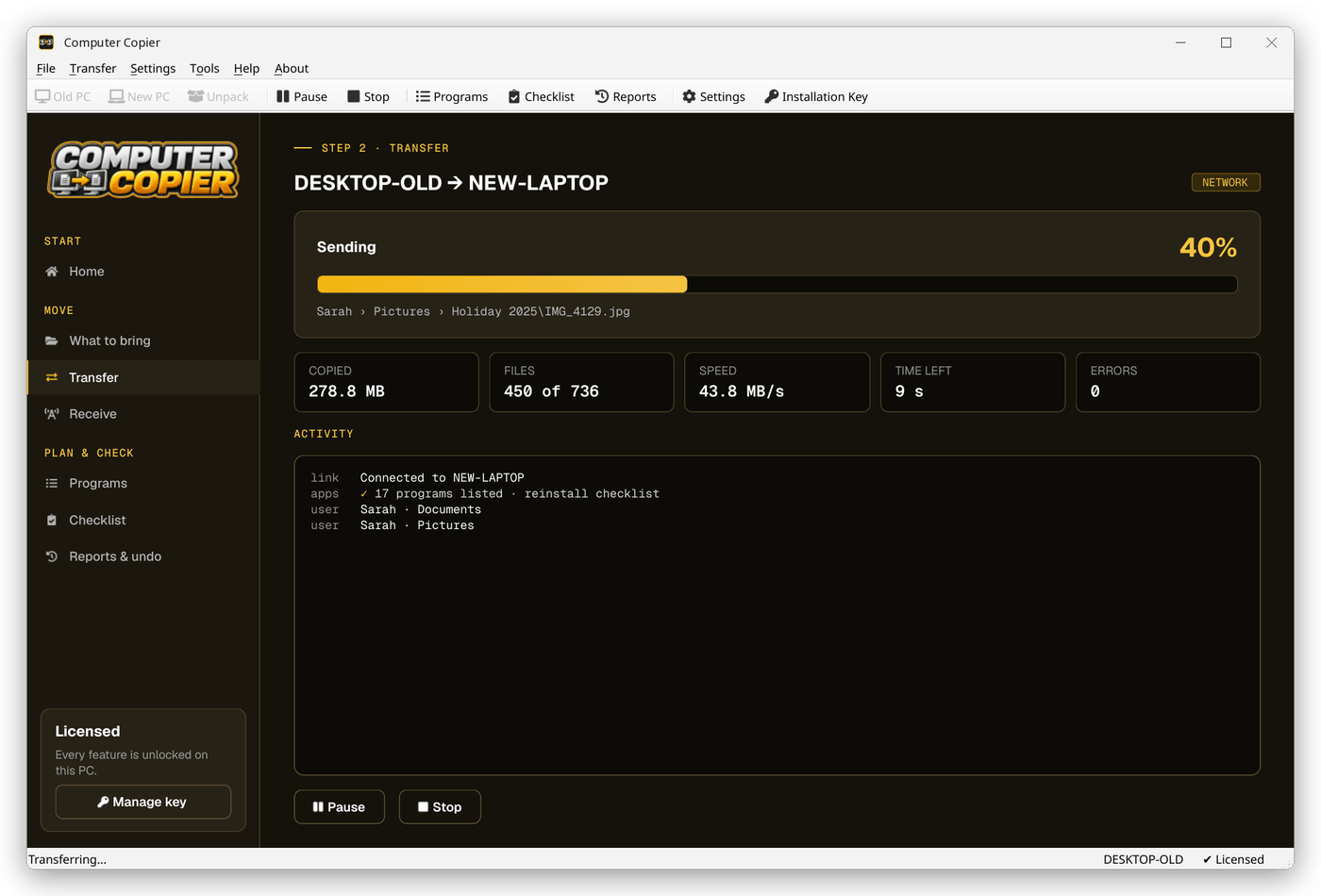
| Item | Meaning |
|---|---|
| Progress bar and % | How much of the data has been copied. The line below it shows the file being copied. |
| Phase | Sending, Receiving, Copying (to a drive), Restoring (unpacking), Verifying, Paused, Waiting for disk N, Done or Stopped. |
| Copied / Files | Data and number of files done so far, out of the total. |
| Speed / Time left | The current speed and an estimate of the time remaining. |
| Errors | Files that couldn't be copied. They're listed in the report with the reason. |
| Activity | A running log: each user folder, bookmarks, email, settings and any problems. |
Pause, resume and stop
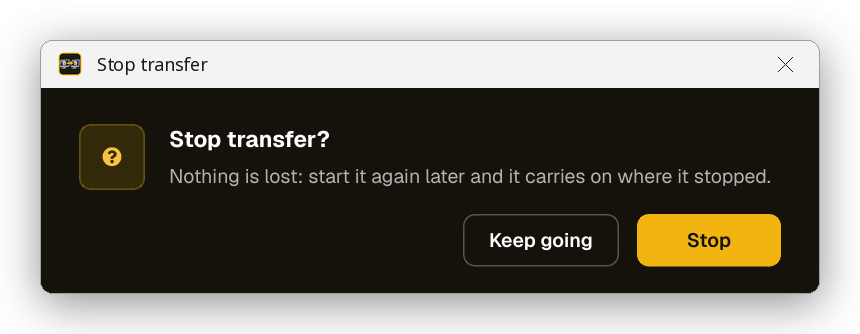
- Pause pauses the transfer; click Resume to carry on.
- Stop ends it for now. Nothing is lost: start the same transfer again later and it carries on where it stopped - files already copied are skipped, and a file that was half-copied over the network continues from where it got to.
Checking every file
With Verify every copied file switched on (the default), each file is read back on the new PC and compared with the original using a checksum. A file that doesn't match is reported as an error and copied again next time.
When it's finished
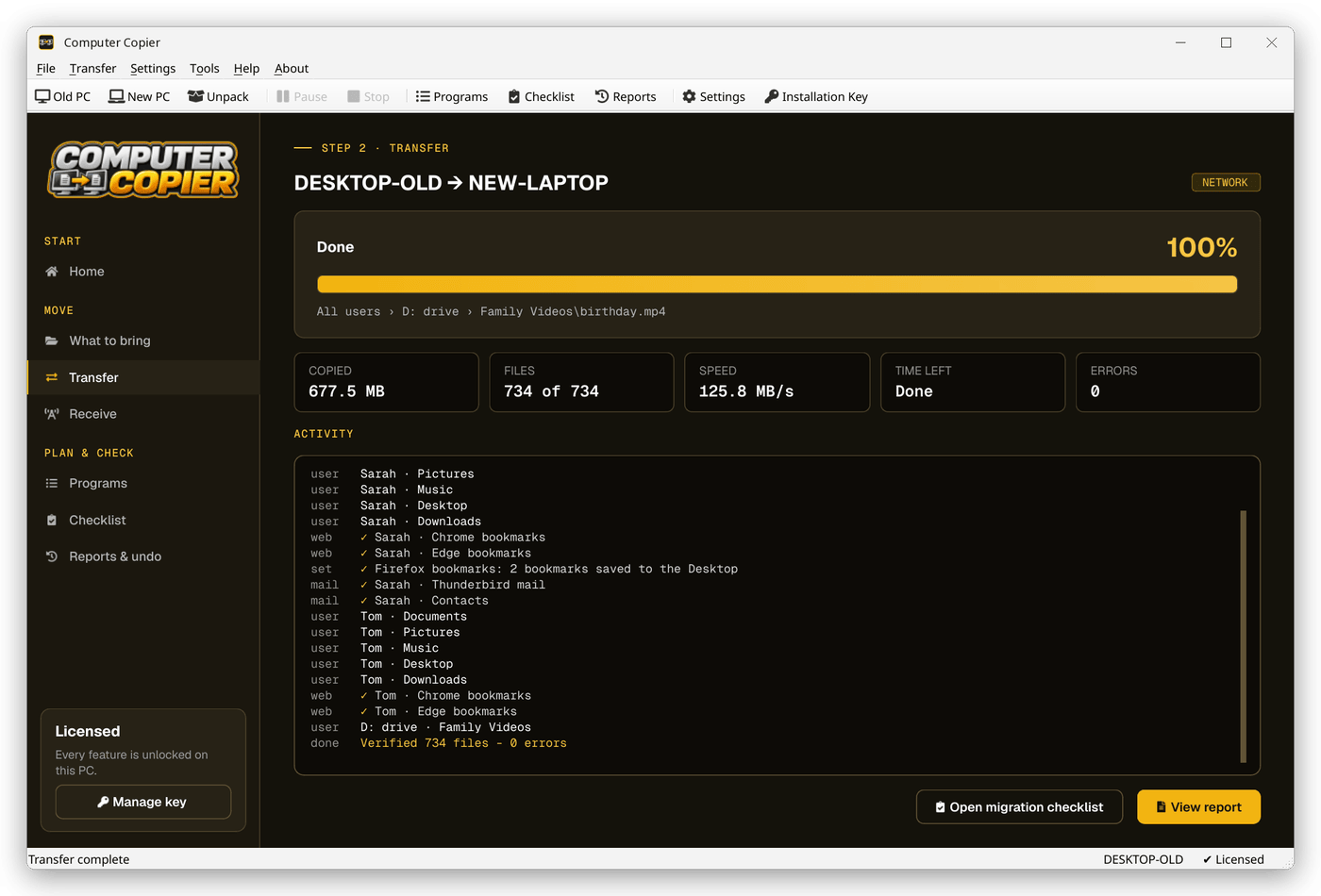
The screen shows Done and 100%, with buttons to View report and Open migration checklist. By default the report opens automatically.
Where things go on the new PC
| What | Where it goes |
|---|---|
| User folders | Into the same folder for the same user on the new PC (for example Sarah's Documents into Sarah's Documents), even if that folder is in a different place on the new PC. |
| Users who don't exist on the new PC | By default into a folder called From OLD-PC - Name inside your own folders (Documents, Pictures and so on). You can choose to merge them straight into your folders instead (Settings › Transfer). If the old PC had only one user, their files go into your folders. |
Other drives (e.g. D:\) | The same drive letter if the new PC has it, otherwise C:\From OLD-PC\D drive. |
| Chrome, Edge and Brave bookmarks | Added to the browser's Bookmarks bar in a folder called Imported from OLD-PC. Your existing bookmarks are kept. If the browser was open, close and reopen it. |
| Firefox bookmarks | Saved on the Desktop as Firefox bookmarks from OLD-PC.html. In Firefox open Bookmarks › Manage bookmarks › Import and Backup › Import Bookmarks from HTML and choose that file. |
| Outlook data files | Copied to the same place, e.g. Documents\Outlook Files. In Outlook use File › Open & Export › Open Outlook Data File. |
| Desktop layout | Takes effect after you sign out of Windows and back in. |
When a file is already there
Files that are identical (same size and date) are always skipped. For different files with the same name, the default is Keep both: the incoming copy is saved as name (from OLD-PC).ext. You can choose Replace (the previous version is kept so Undo can restore it) or Skip in Settings › Transfer.
Reports & Undo
Every transfer is listed on the Reports & undo page (Tools › Reports & undo), showing the date, the PCs, the method, files, size and status.
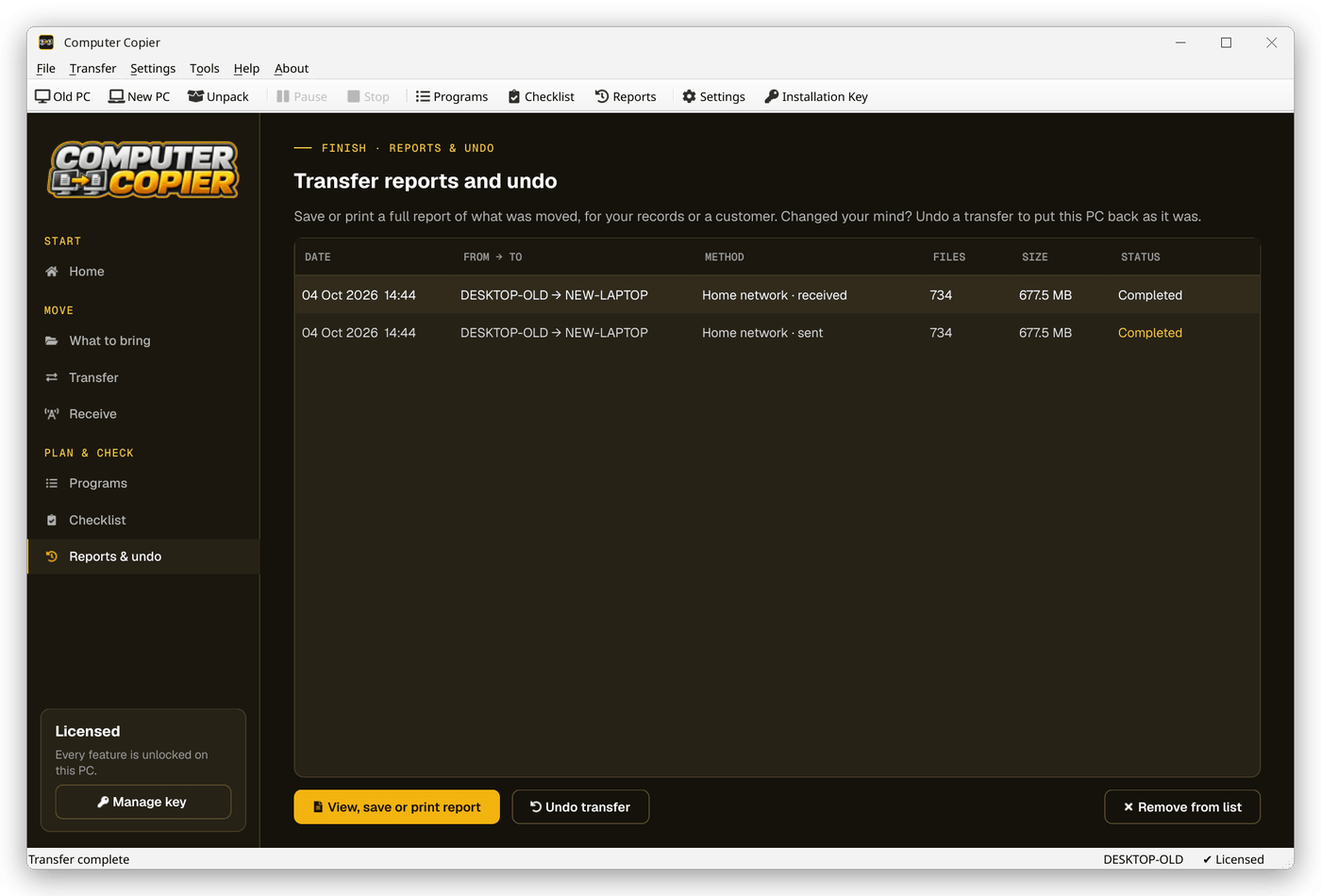
The transfer report
Select a transfer and click View, save or print report. The report shows what moved, the settings applied, things to do (for example importing Firefox bookmarks) and every item that couldn't be copied, with the reason. Use Save as PDF, Save as web page or Print....
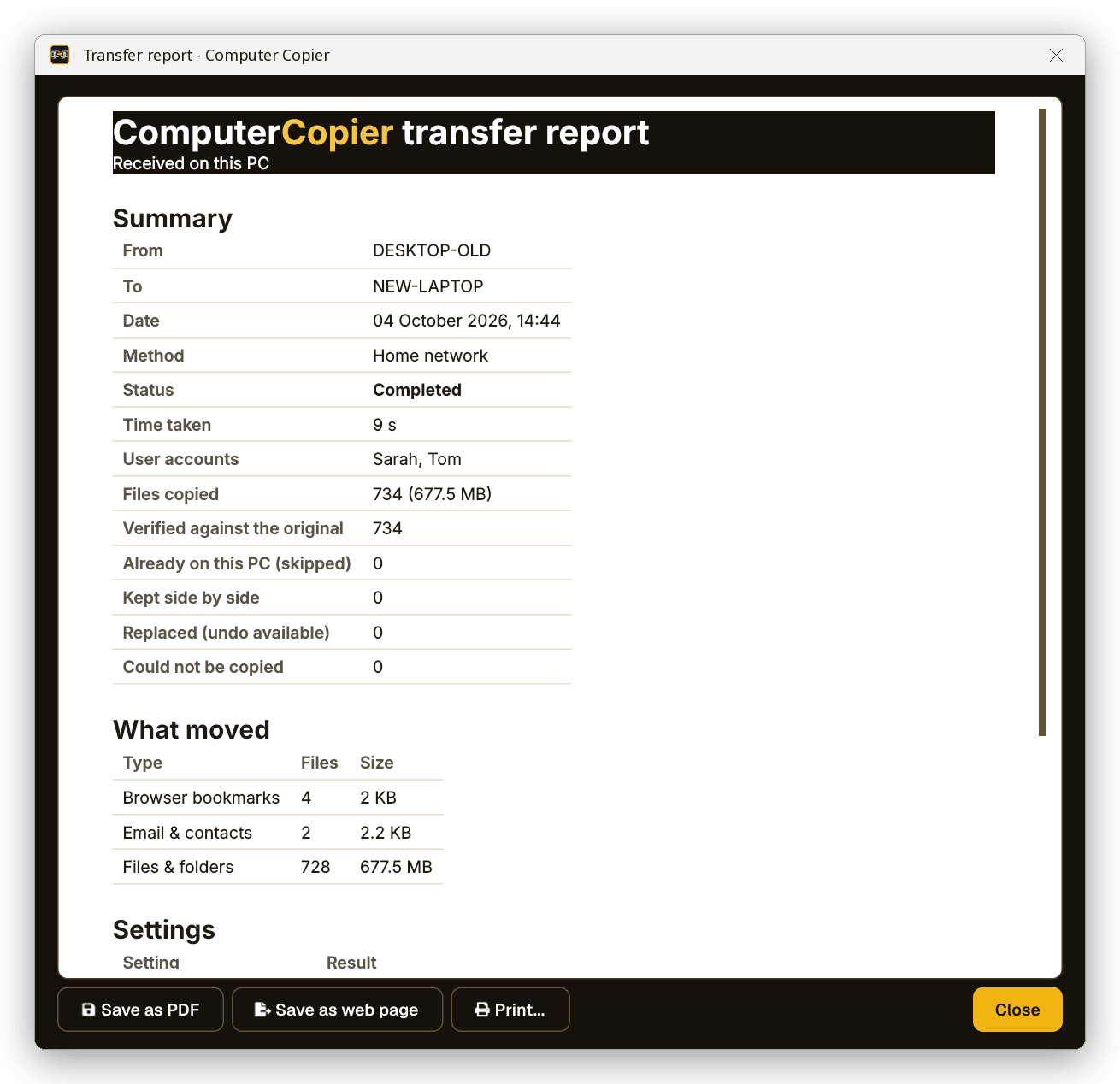
Undo a transfer
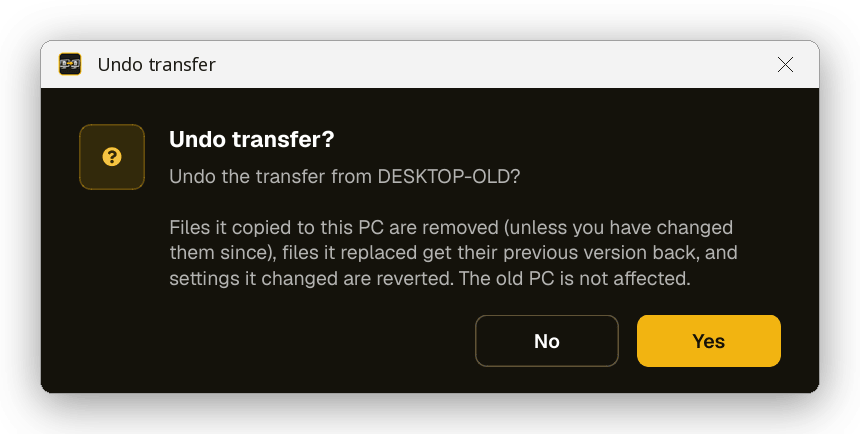
On the PC that received the transfer, select it and click Undo transfer.
- Files the transfer copied are removed - unless you've changed them since, in which case they're kept.
- Files it replaced get their previous version back.
- Settings it changed are put back, Wi-Fi networks and printers it added are removed, and folders it created are removed if they're empty.
- The old PC isn't affected.
Remove from list deletes a transfer's report and undo information - after that it can no longer be undone.
Program checklist
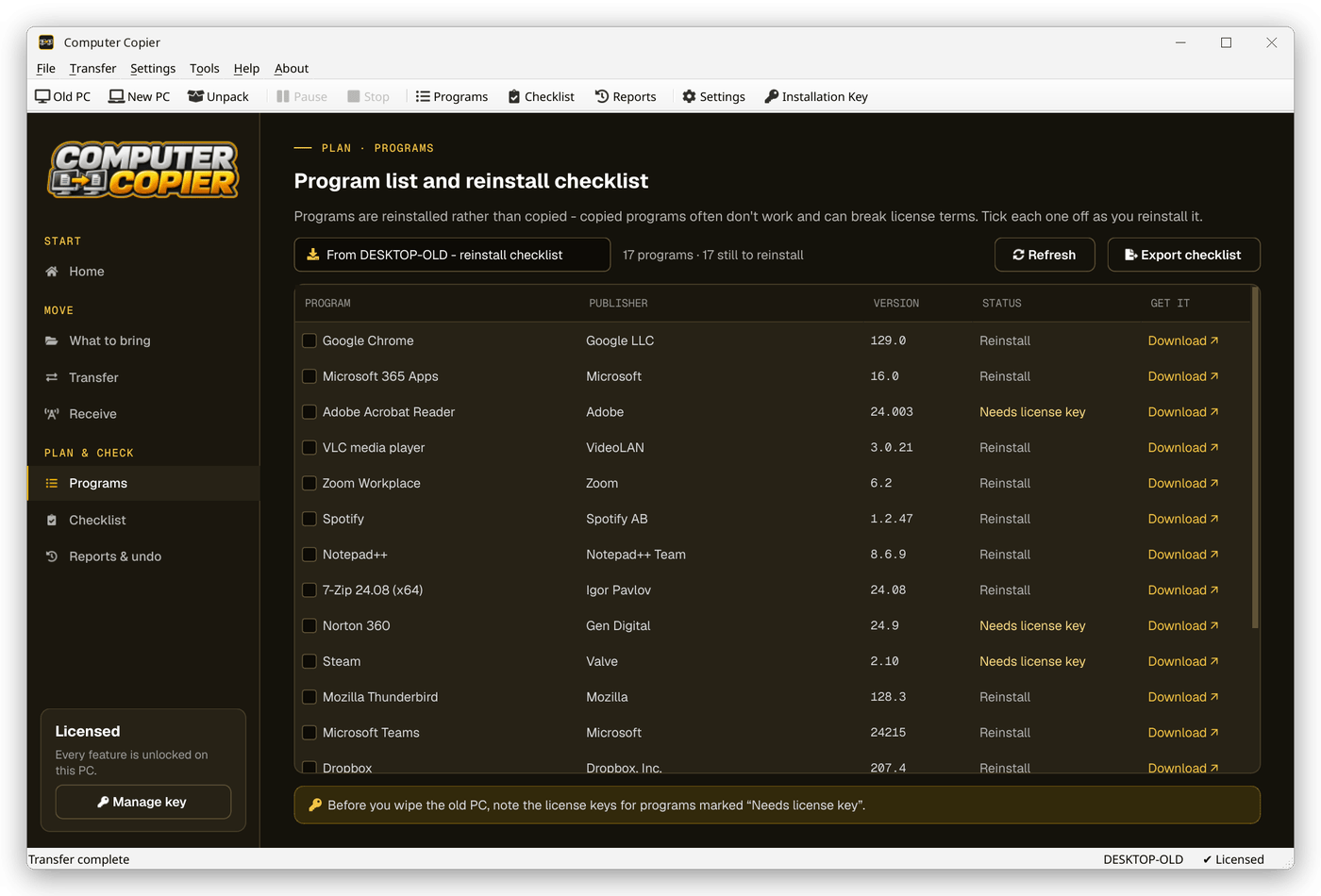
The Programs page lists the programs installed on the old PC. After a transfer, the new PC shows the old PC's list as a reinstall checklist:
- Installed here - already on the new PC.
- Reinstall - click Download to open the program's download page.
- Needs license key - programs that usually need a key or account sign-in (such as Office, Adobe or antivirus). Note those keys before you wipe the old PC.
Tick each program as you reinstall it - your ticks are saved. Export checklist saves the list as a web page you can print. Use the drop-down to switch between the old PC's list and the programs on this PC.
Migration checklist
The Checklist page covers the things people forget when they change PC: passwords, two-factor authenticator apps, software license keys, licenses tied to the old PC, cloud syncing, printer drivers, old email accounts, Windows Update and wiping the old PC. Tick items as you go - your ticks are saved, and Run the transfer is ticked automatically when a transfer completes.
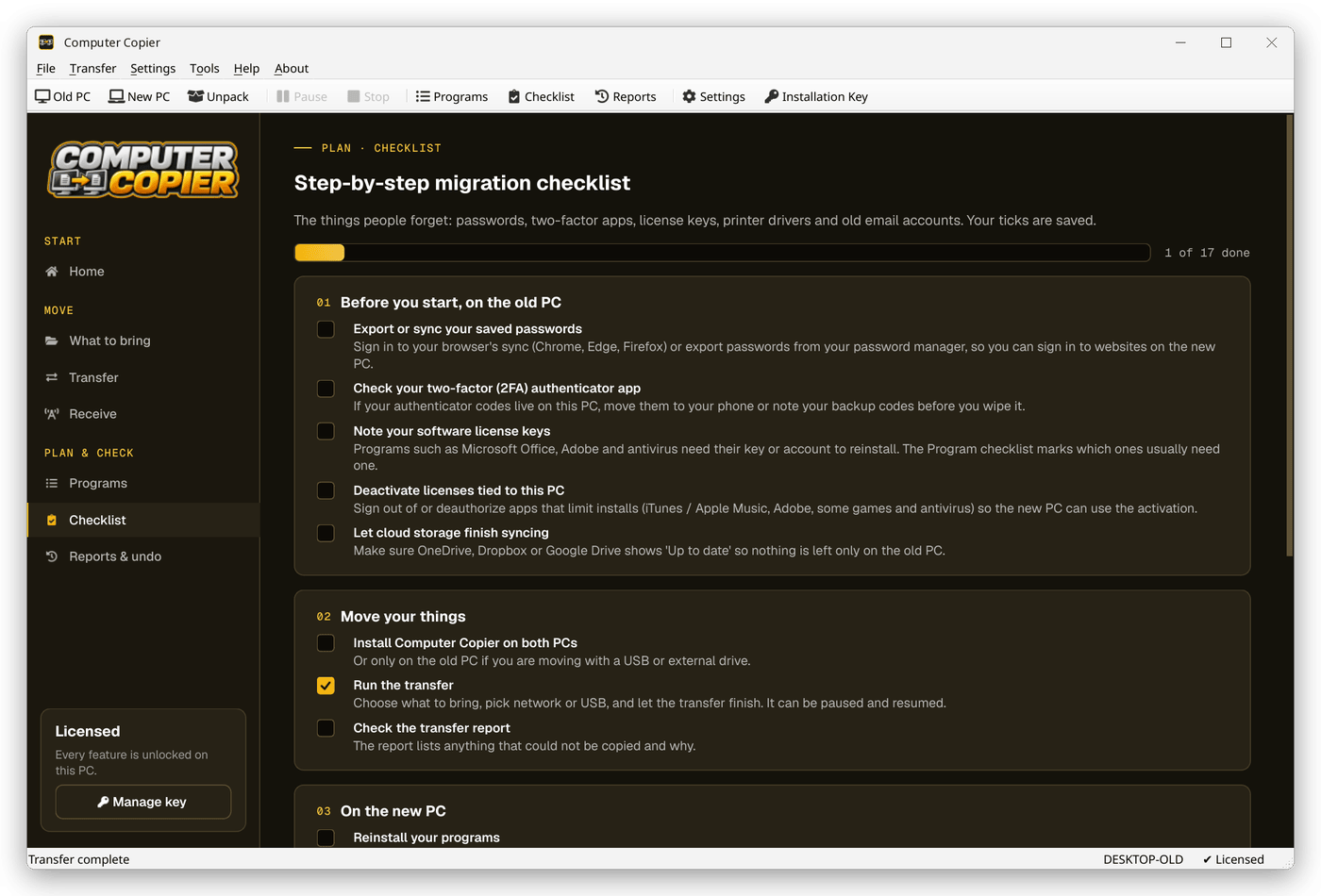
To clear all ticks, use Settings › Advanced › Reset migration checklist.
Settings & default settings
Open Settings › Settings... or the Settings toolbar button. Click Save settings to keep your changes. The screenshots show the default settings.
General
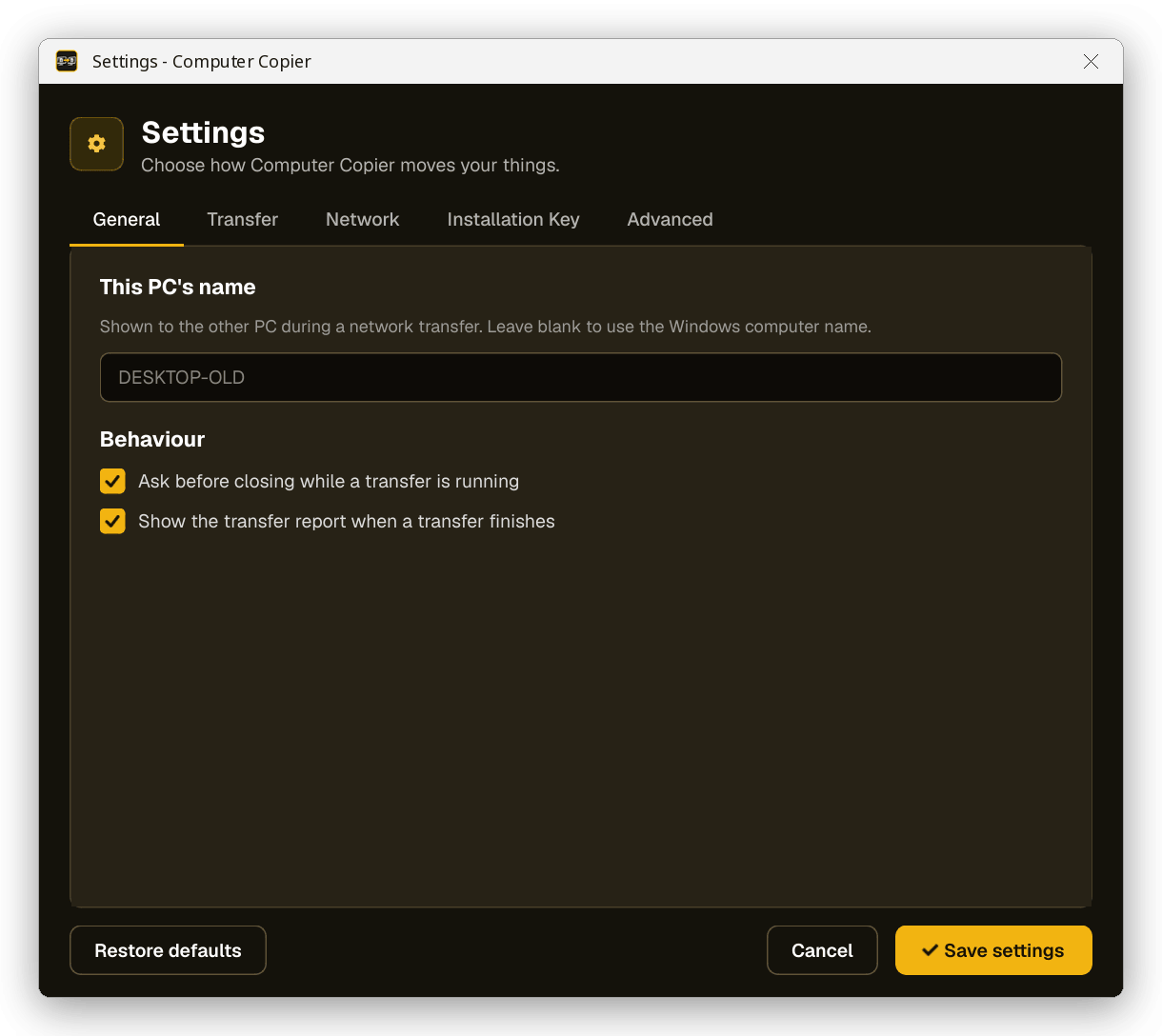
| Setting | Default | What it does |
|---|---|---|
| This PC's name | Blank (Windows computer name) | The name shown to the other PC during a network transfer. |
| Ask before closing while a transfer is running | On | Prevents closing Computer Copier by accident. |
| Show the transfer report when a transfer finishes | On | Opens the report automatically. |
Transfer
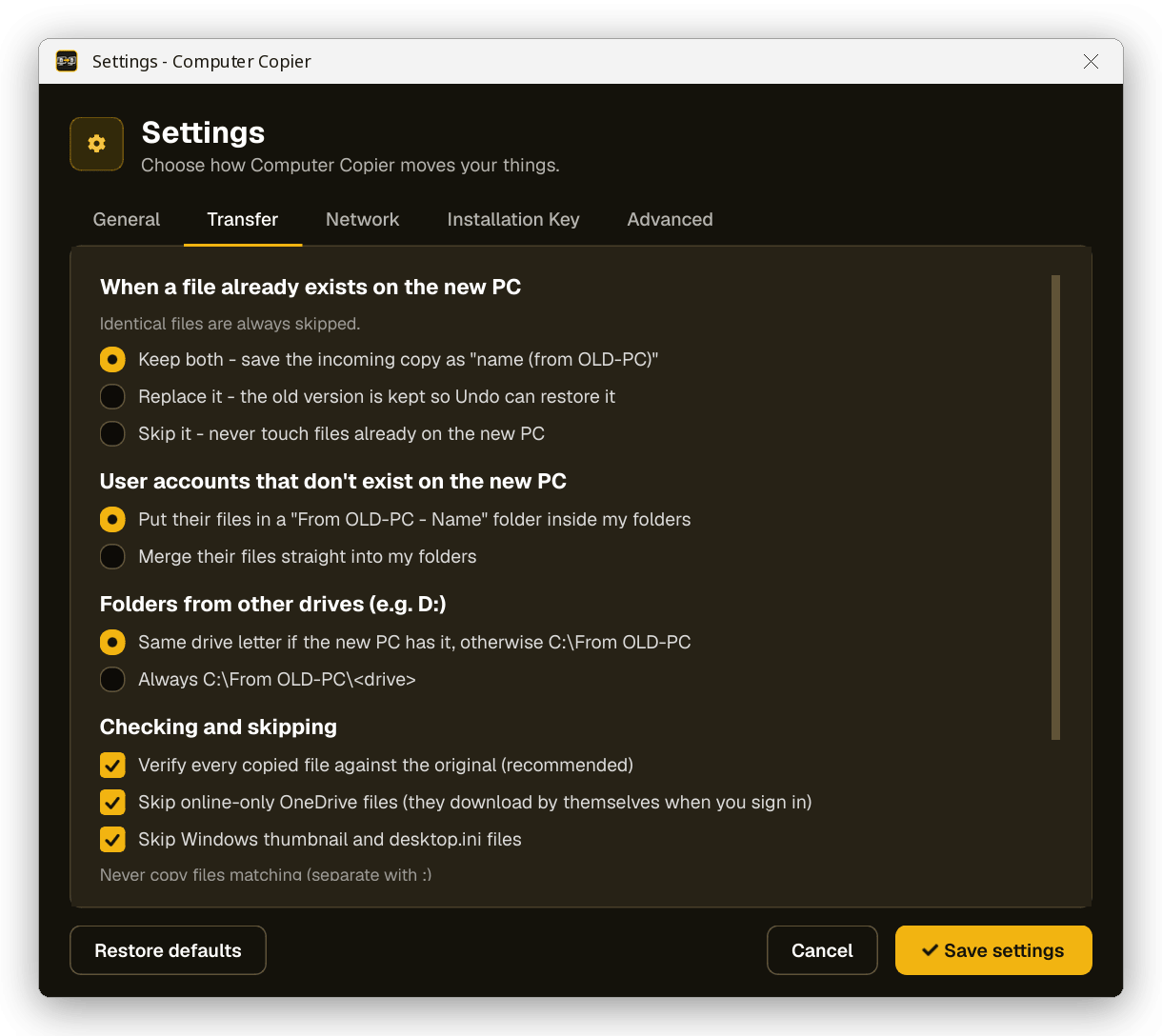
| Setting | Default | What it does |
|---|---|---|
| When a file already exists on the new PC | Keep both | Keep both, Replace (with Undo) or Skip. Identical files are always skipped. |
| User accounts that don't exist on the new PC | "From OLD-PC - Name" folder | Or merge their files straight into your folders. |
| Folders from other drives | Same drive letter, otherwise C:\From OLD-PC | Or always C:\From OLD-PC\<drive>. |
| Verify every copied file | On | Compares each copy with the original. |
| Skip online-only OneDrive files | On | They download by themselves when you sign in to OneDrive. |
| Skip Windows thumbnail and desktop.ini files | On | These are re-created by Windows. |
| Never copy files matching | Thumbs.db; desktop.ini; ~$*; *.tmp | Separate patterns with ;. |
| Leave free on each drive | 64 MB | Space left free on each USB / external drive. |
Network
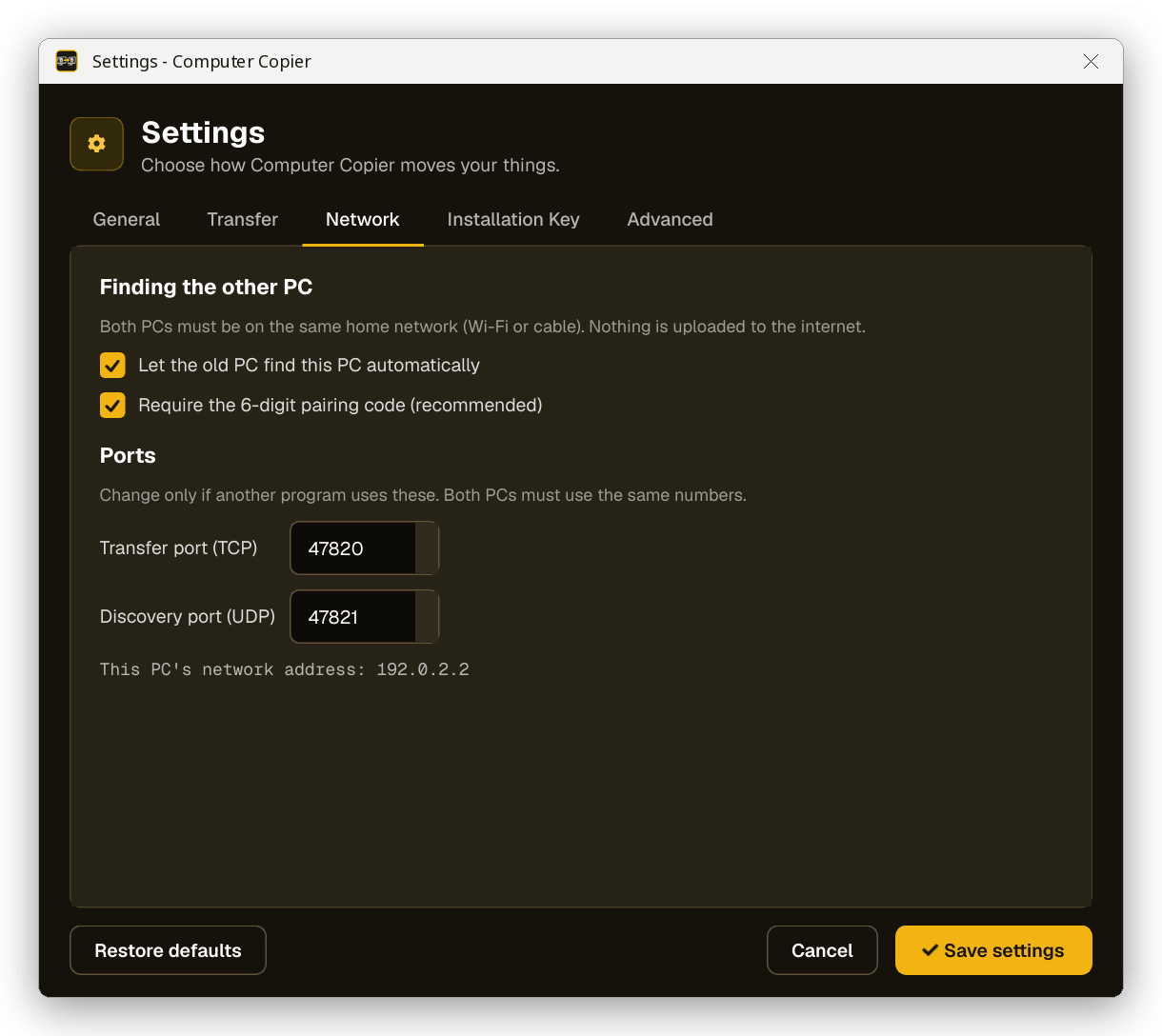
| Setting | Default | What it does |
|---|---|---|
| Let the old PC find this PC automatically | On | The new PC appears in the old PC's list. |
| Require the 6-digit pairing code | On | Recommended. Stops other PCs on your network from sending to yours. |
| Transfer port (TCP) | 47820 | Change only if another program uses these. Both PCs must use the same numbers. |
| Discovery port (UDP) | 47821 |
Installation Key
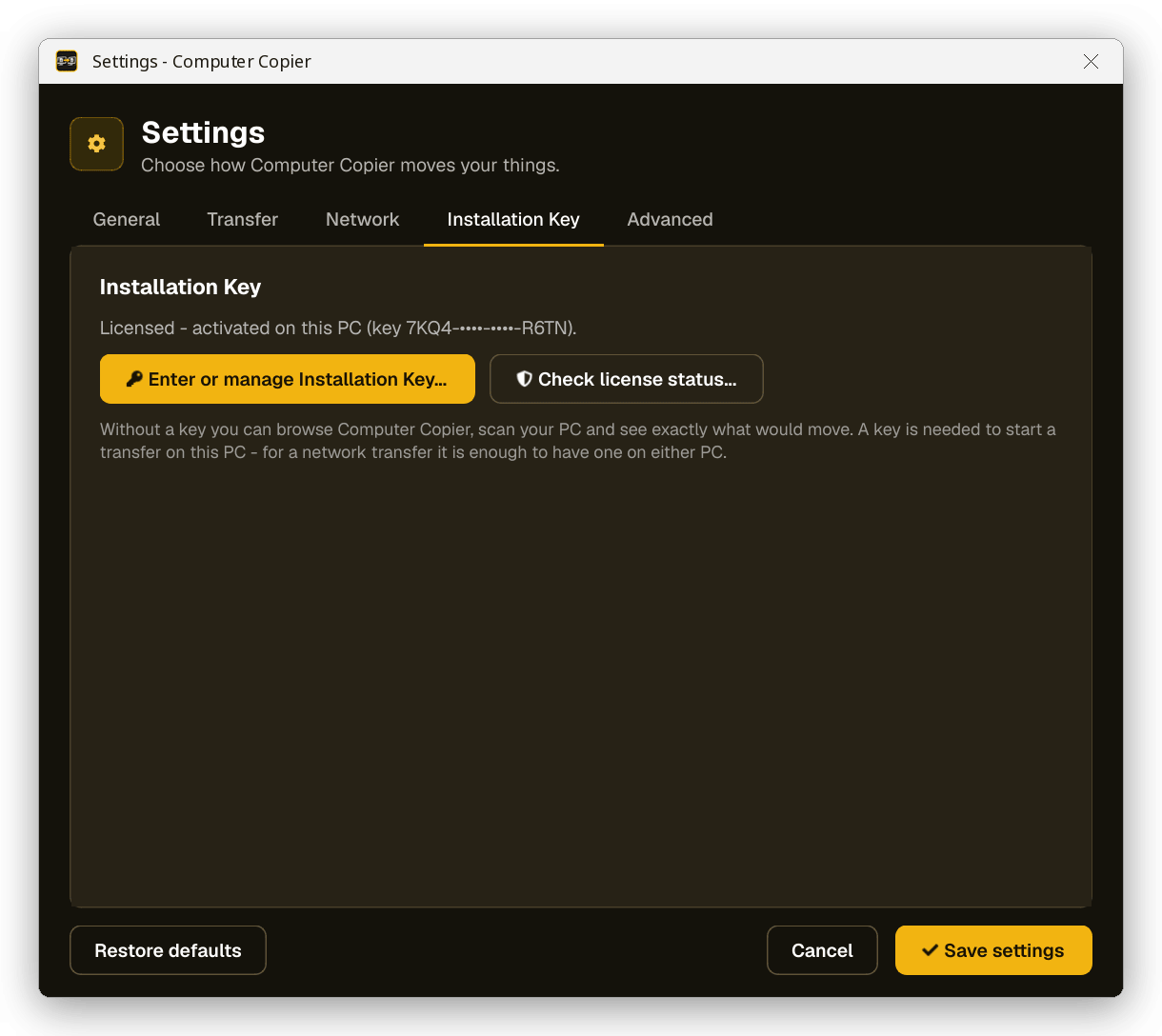
Shows your license status, with buttons to enter or manage your Installation Key and to check your license status.
Advanced
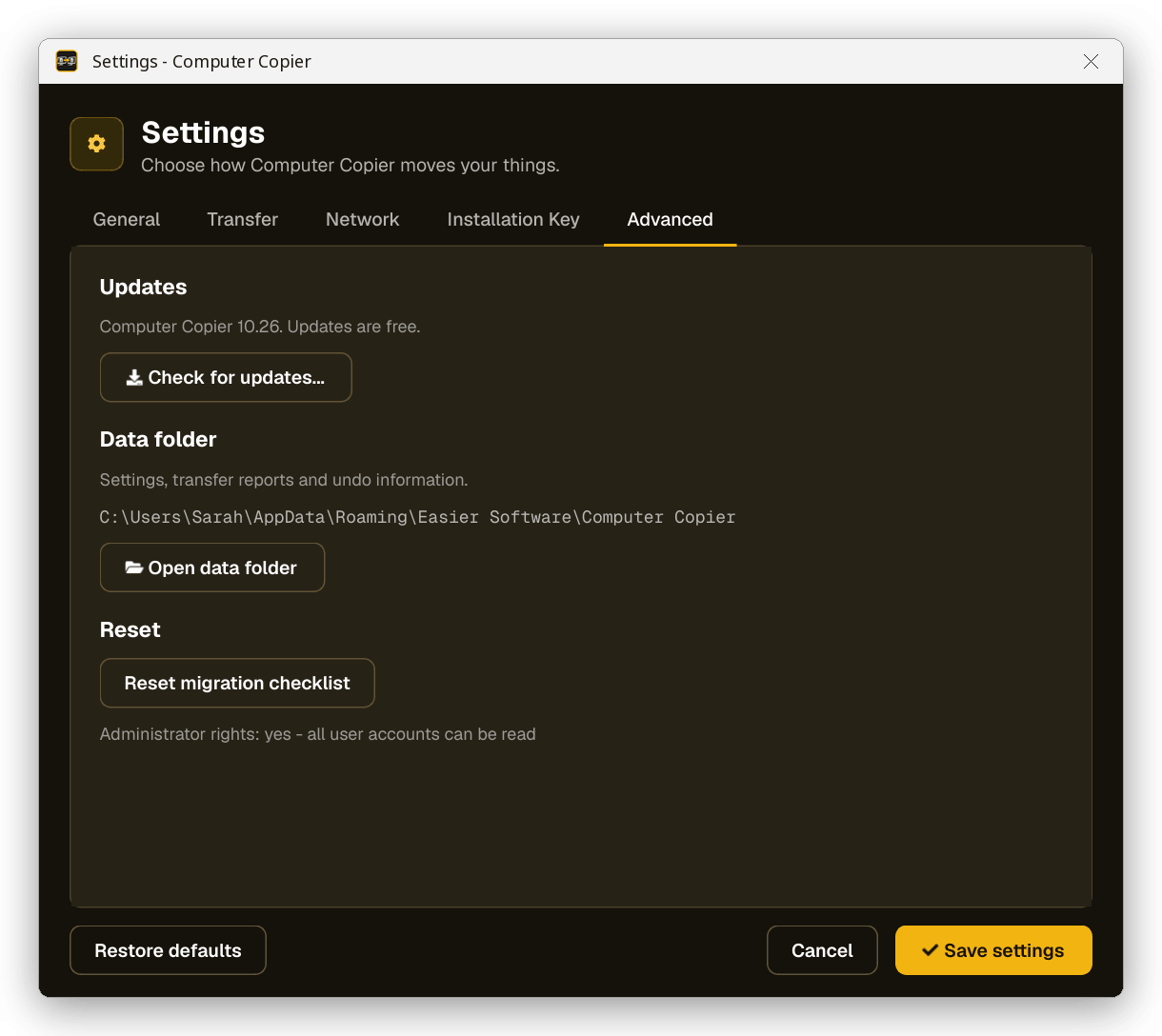
Check for updates..., the data folder where settings, reports and undo information are kept (%APPDATA%\Easier Software\Computer Copier) with a button to open it, Reset migration checklist, and whether Computer Copier is running with administrator rights.
Restoring default settings
Choose Settings › Restore default settings..., or click Restore defaults in the Settings window, then confirm. Every option goes back to the defaults listed above.
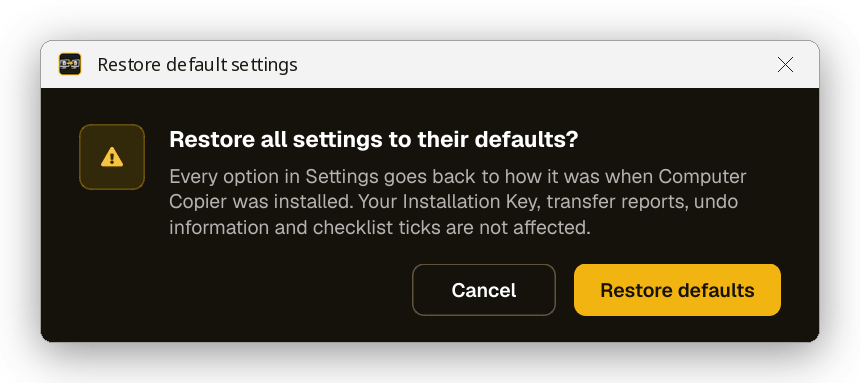
Your Installation Key, transfer reports, undo information and checklist ticks are not affected.
Installation Keys
Your Installation Key is in your purchase email. It activates Computer Copier on your PC.
Installation Key format
A key has 16 letters and numbers in four groups: XXXX-XXXX-XXXX-XXXX. You can type it with or without the dashes, in capitals or not - Computer Copier adds the dashes for you. Copying and pasting it from your email is the easiest way.
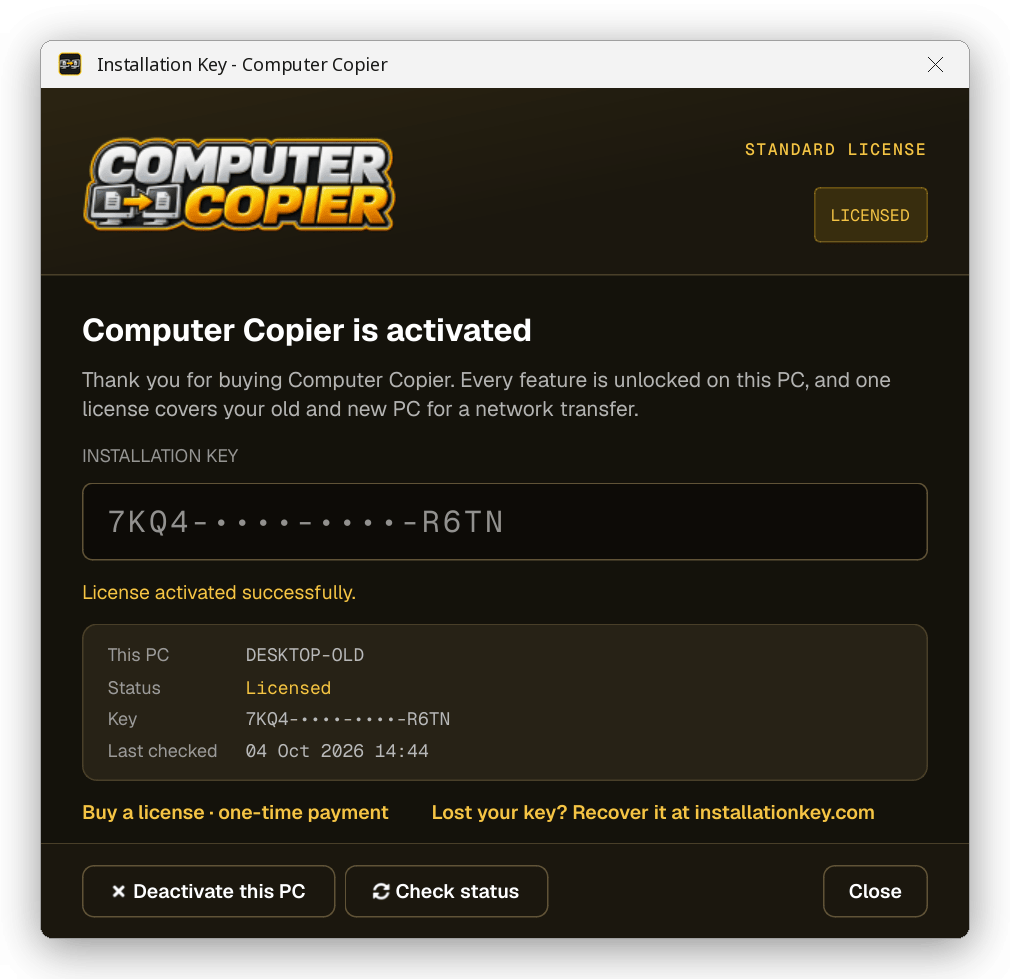
Once a key is entered, Computer Copier only ever shows its first and last four characters, for example ABCD-••••-••••-WXYZ, so your full key isn't on screen.
What works without a key (browse mode)
You can install Computer Copier, open it, scan your PC, choose what to bring and see sizes, use the Program and Migration checklists, view reports and change settings. A key is needed to start a transfer:
| To do this | An activated key is needed on |
|---|---|
| Network transfer | Either PC - the old PC or the new PC. One license covers the move. |
| Save to a USB drive or transfer file | The old PC. |
| Unpack a USB drive or transfer file | The new PC - or nowhere, if the transfer was saved by an activated copy. |
Lost your Installation Key?
Look up or reissue your key at installationkey.com - it's quicker than contacting support.
Entering your key & activating Computer Copier
- Make sure the PC is connected to the internet.
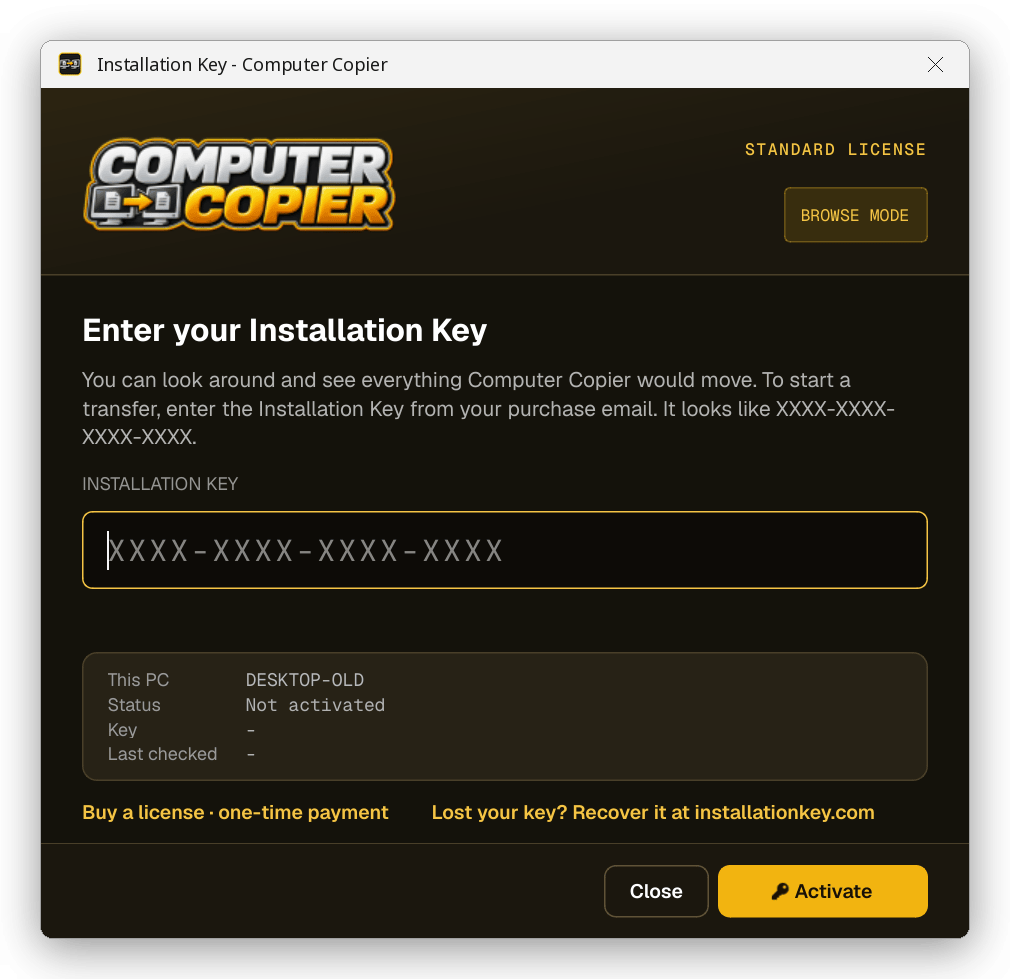
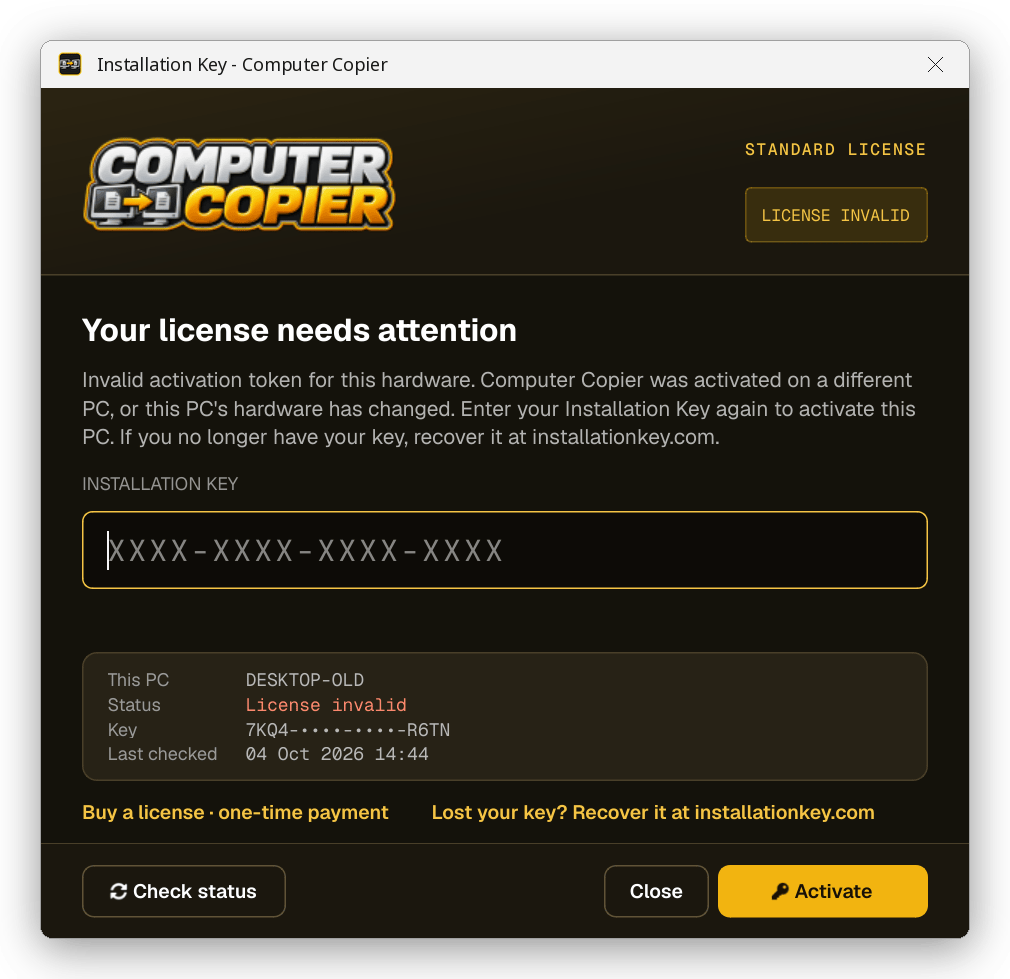
- Click Enter Installation Key in the sidebar or banner, or choose Settings › Enter Installation Key... or Help › Enter Installation Key....
- Paste or type your key into the Installation Key box.
- Click Activate. Computer Copier contacts the Installation Key server and shows the result underneath the key.
When activation succeeds
The window changes to Computer Copier is activated, the badge shows LICENSED and your key is shown with only its first and last four characters. Every feature is unlocked straight away - no restart needed.
If activation doesn't succeed
The message from the license server is shown in red under the key - for example if the key isn't recognised or is already in use on another PC. See Troubleshooting: Installation Key not accepted.
Checking license status
Choose Settings › Check license status... or Help › Check license status... (or Check status in the Installation Key window). Computer Copier checks your key with the license server and shows the status, your key (first and last four characters), this PC's name, when it was last checked, and the server's reply.
| Status | Meaning |
|---|---|
| Licensed | Activated on this PC. Every feature is unlocked. |
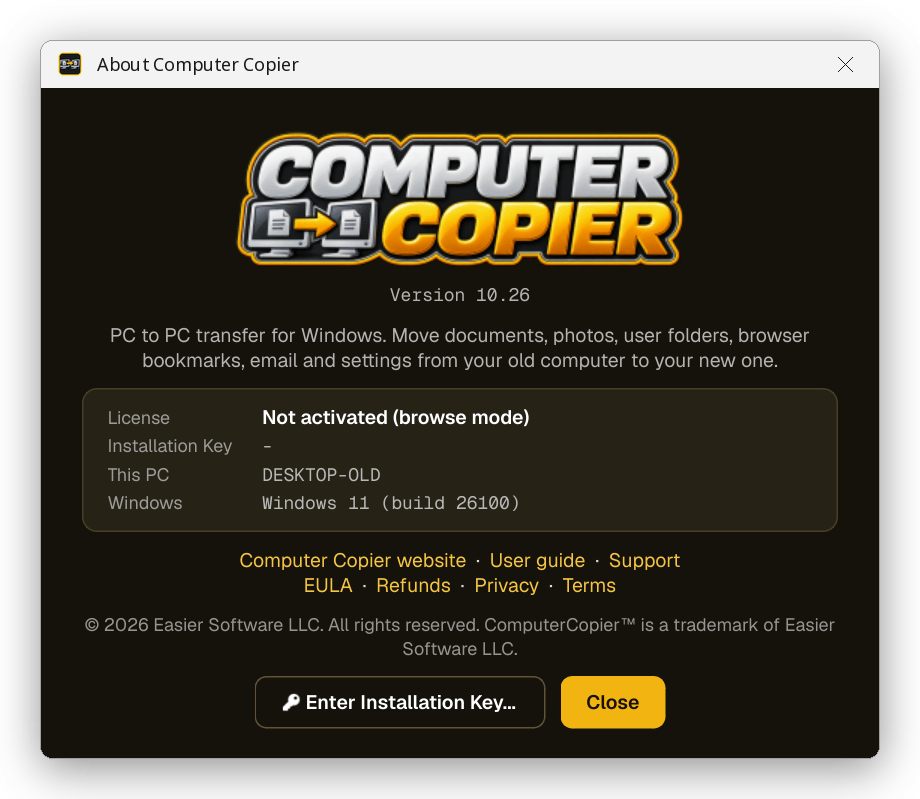
| Not activated | No key has been activated on this PC - browse mode. |
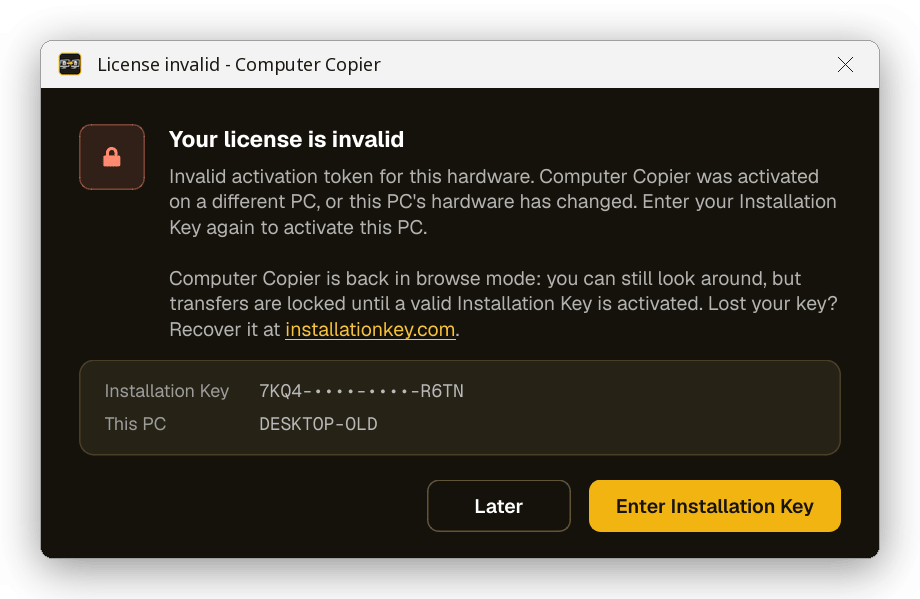
| License invalid | A key was activated here but can no longer be used. Transfers are locked. See License Invalid. |
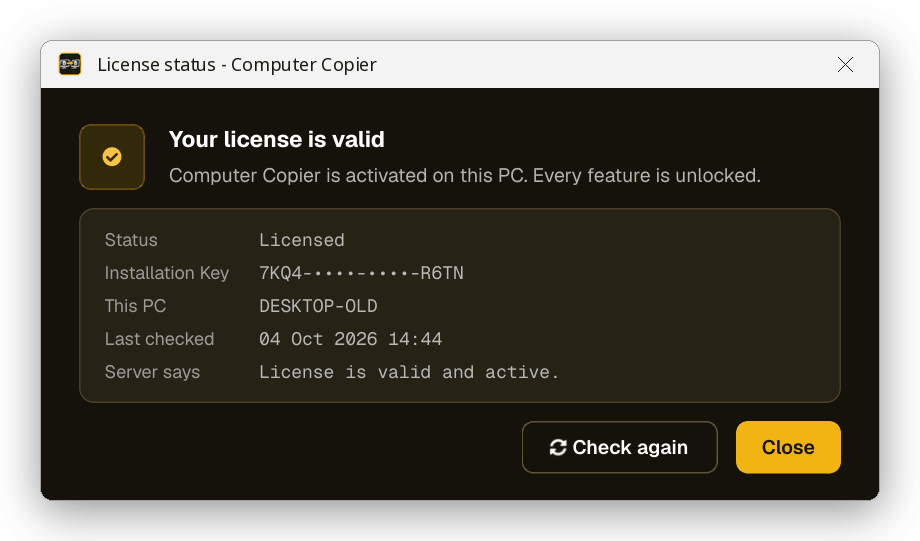
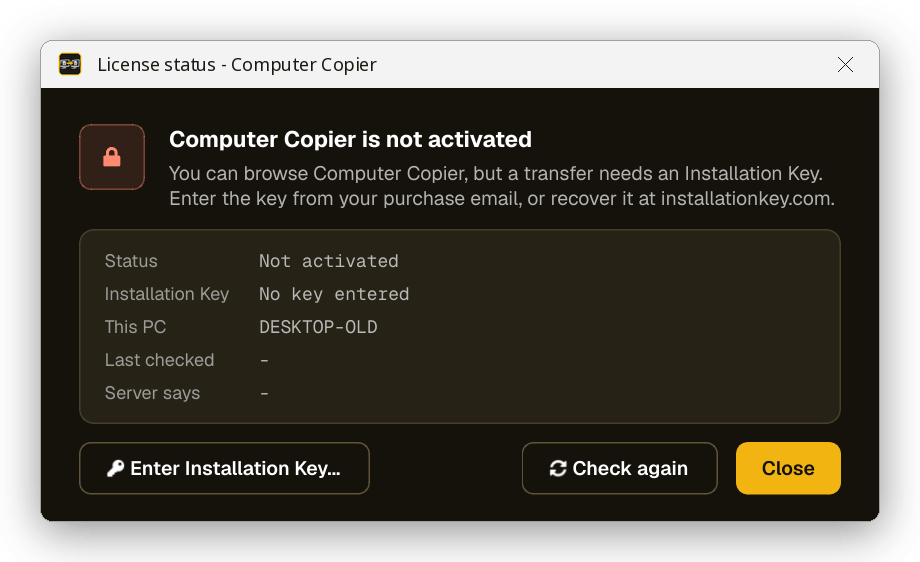
If the license server can't be reached, you'll see Couldn't reach the license server. An activated copy keeps working while you're offline.
Computer Copier also checks your license quietly each time it starts, if you're online.
License Invalid
The status becomes License invalid when a key was activated on this PC but can no longer be used. Computer Copier goes back to browse mode: you can still look around, but transfers are locked until a valid key is activated. It happens when:
- The license server says the key is no longer valid for this PC - for example because it was deactivated for this PC or is no longer active. The server's reason is shown.
- Invalid activation token for this hardware. The saved activation belongs to a different PC, or this PC's hardware has changed (for example after replacing the main board, or after copying Computer Copier's data folder from another PC).
When this happens you'll see a message when Computer Copier starts, a red banner on the main screen and License invalid in the sidebar and status bar.
How to fix it
- Click Enter Installation Key (or Fix license in the sidebar).
- Enter your Installation Key again and click Activate. This activates the key for this PC as it is now.
- If the server says the key is already in use on another PC, deactivate it on that PC first. If that PC isn't available any more, contact support.
- If you can't find your key, recover it at installationkey.com.
Deactivating a PC
Deactivating frees your activation so you can use your Installation Key on another PC.
- Make sure the PC is online.
- Choose Settings › Deactivate this PC... or Help › Deactivate this PC... (or Deactivate this PC in the Installation Key window).
- Check the PC name and key, then click Deactivate.
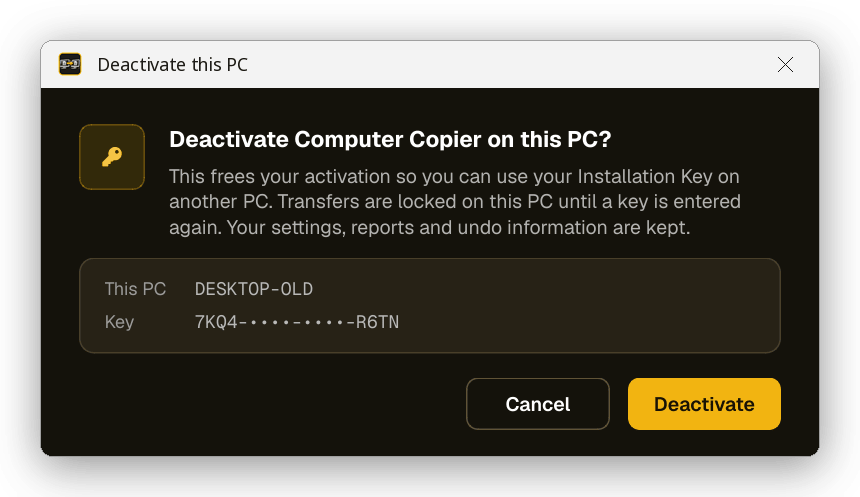
Computer Copier goes back to browse mode on that PC. Your settings, reports and undo information are kept. The key is removed from the PC even if the server can't be reached at that moment; if that happens, deactivate again later or contact support.
Moving to another PC or reinstalling
- For a transfer you don't need to move anything: one license covers your old and new PC. Activate on one of them (see the table in Installation Keys).
- Using your key on a different PC later: choose Deactivate this PC on the PC you're leaving, then activate on the new one.
- The old PC is gone or broken: try activating on the new PC. If the server says the key is already in use, contact support and ask for the activation to be reset.
- Hardware changes: if Computer Copier reports Invalid activation token for this hardware, enter your key again - see License Invalid.
- Reinstalling on the same PC: run the installer again. Your activation, settings and reports are kept in
%APPDATA%\Easier Software\Computer Copier.
Recovering your Installation Key
Look up or reissue your Installation Key
Go to installationkey.com to recover a lost key or have it reissued.
- Search your email for your Computer Copier purchase email - try searching for "Computer Copier" or "Installation Key", and check your spam or junk folder.
- Use installationkey.com - https://www.installationkey.com/ - to look up or reissue your key.
- Still can't find it? Contact support with the email address you used to buy Computer Copier.
You can also choose Help › Recover a lost Installation Key in Computer Copier, or click the link in the Installation Key window.
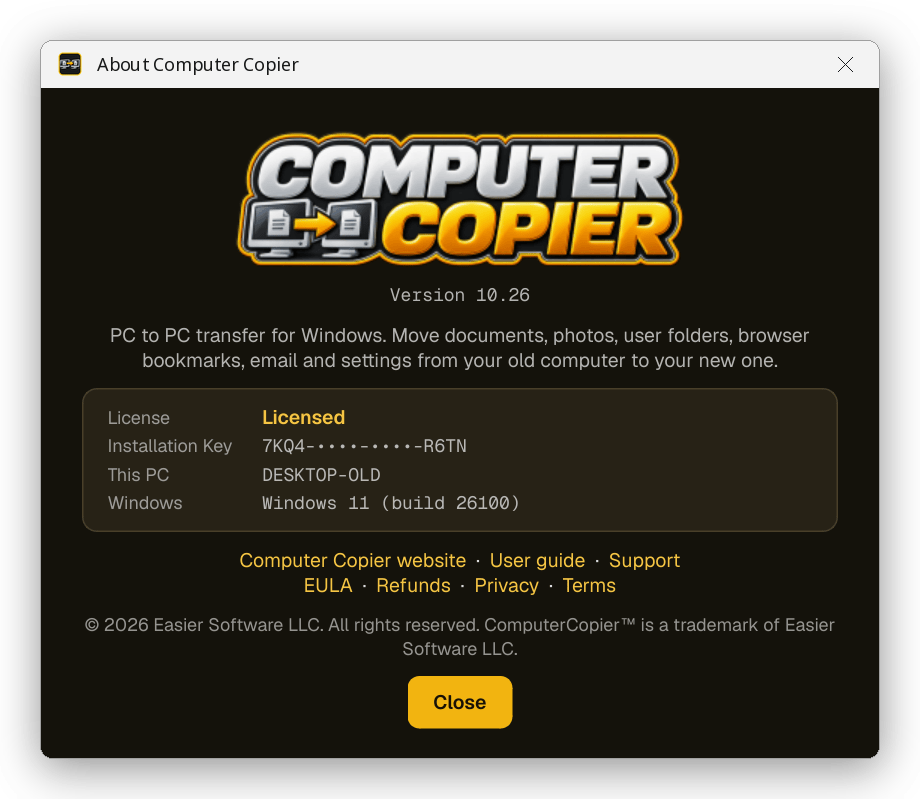
On a PC where Computer Copier is already activated, About Computer Copier shows the first and last four characters of the key in use - handy for working out which key that PC has.
Checking for software updates
Updates are free. Choose Help › Check for updates... (or Settings › Advanced › Check for updates...). Computer Copier checks the Computer Copier website and shows your installed version and the latest version.
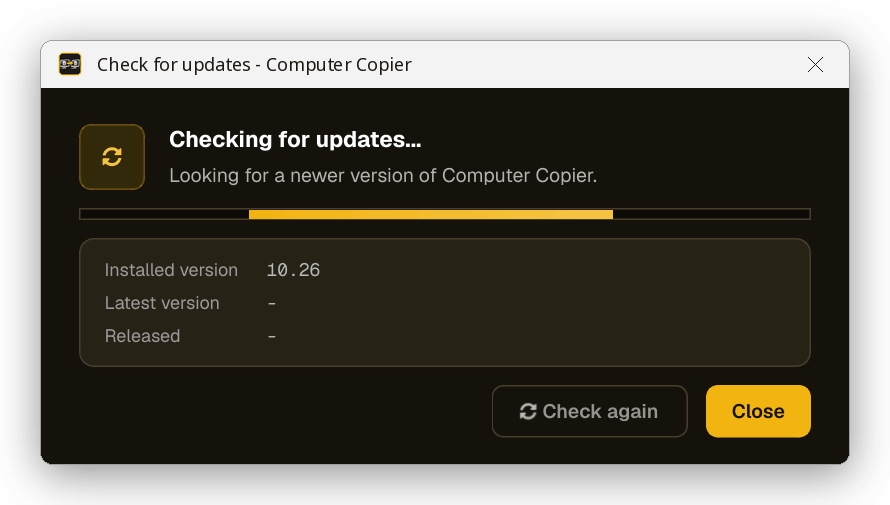
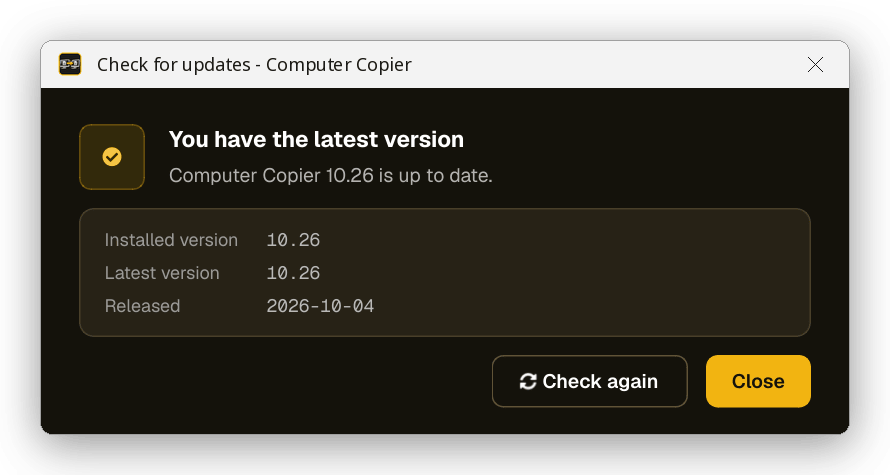
- You have the latest version - nothing to do.
- Computer Copier x.xx is available - click Download update to open the download page, then run the new installer over the top of your current version. Your settings, reports and activation are kept. Nothing is downloaded or installed automatically.
- Couldn't check for updates - you may be offline, or a firewall may be blocking Computer Copier. Try again later, or visit the Computer Copier website.
Reinstalling & uninstalling
To uninstall, open Windows Settings › Apps, find Computer Copier and click Uninstall. If you'll use your key on another PC, deactivate first.
Uninstalling removes the program and its firewall rule, but keeps your settings, reports, undo information and activation in %APPDATA%\Easier Software\Computer Copier in case you reinstall. Delete that folder to remove them too.
Troubleshooting
My Installation Key isn't accepted
Read the red message under the key - it comes from the license server. Then check:
- The key was copied exactly. Copy and paste it from your purchase email; the dashes are added for you.
- You're online - activation needs the internet.
- If the message says the key is already in use, deactivate it on the other PC first.
If it still isn't accepted, contact support with the message you see.
"Please enter the complete key - it has 16 letters and numbers"
The key you typed is too short. Installation Keys have 16 letters and numbers in the format XXXX-XXXX-XXXX-XXXX. Paste it from your purchase email to avoid typing mistakes.
I've lost my Installation Key
Recover or reissue it at installationkey.com. See Recovering your Installation Key.
The status says "License invalid"
Enter your key again and click Activate. See License Invalid for the reasons and steps.
"Invalid activation token for this hardware"
The saved activation belongs to a different PC, or this PC's hardware has changed. Enter your Installation Key again on this PC. If the server then says the key is in use elsewhere, deactivate it on the other PC or contact support.
"Could not reach the Installation Key server"
Activation, deactivation and license checks need the internet. Check you're online and that a firewall or antivirus isn't blocking Computer Copier, then try again. An already activated copy keeps working offline.
A transfer won't start because of my license
Starting a transfer needs an activated key - see the table in Installation Keys:
- Network: on either PC. If you see "An Installation Key is needed on one of the two PCs", activate on either PC and start again.
- Saving to a drive: on the old PC.
- Unpacking: on the new PC, unless the transfer was saved by an activated copy.
Computer Copier was activated on another computer
Deactivate it on that computer (Settings › Deactivate this PC), then activate on this one. If the other computer isn't available, contact support.
The old PC can't find the new PC
- Make sure Computer Copier is open on the new PC on the Ready to receive screen.
- Both PCs must be on the same Wi-Fi network or connected to the same router. Guest Wi-Fi networks often keep devices apart.
- Allow Computer Copier through Windows Firewall when Windows asks (the installer option does this for you).
- Type the new PC's address (shown on its Ready to receive screen) in the box under the list on the old PC.
- If you changed the ports in Settings › Network, both PCs must use the same numbers.
- No luck? Use a USB drive instead.
"The pairing code does not match"
Type the code shown on the new PC right now. A new code is made each time the new PC starts receiving, so an old code won't work.
"Could not connect to ..." or "The connection to the new PC was lost"
Check both PCs are still on the network and that the new PC is still on the Ready to receive screen (and not asleep). Then start the transfer again - files already copied are skipped and it carries on where it stopped.
"This PC is already receiving a transfer"
The new PC can receive from one old PC at a time. Wait for the first transfer to finish, then send from the next PC.
"Please update Computer Copier on both PCs to the same version"
The two PCs have different versions. Use Check for updates on both, or install the same version on both.
"That drive or folder doesn't contain a Computer Copier transfer"
Choose the drive you saved to on the old PC, or the Computer Copier Transfer - ... folder on it. Start with Disk 1.
I'm asked for disk 2 but I only have one drive
The first drive filled up. Plug in another drive with free space and choose it - the transfer carries on there. You can also copy the files you've saved so far to the new PC, empty the drive and choose it again for the next disk.
"That is disk N, not disk M" / "That folder is not part of this transfer"
Plug in the drive with the disk number being asked for, from the same transfer. Each drive holds a folder called Disk 1, Disk 2 and so on.
The drive is full and I didn't choose another one
The transfer stops. Start it again with the same drive chosen - files already saved are skipped - and choose another drive when asked.
A folder I want isn't in the list
Click Add folder... on the What to bring screen and choose it. Folders directly inside a user folder and folders on other drives are listed but unticked - tick them to bring them.
Another user's files are missing
Computer Copier needs administrator rights to read other users' folders. Click Yes when Windows asks for permission at start-up. Settings › Advanced shows whether it is running with administrator rights.
How do I remove something from the transfer?
Untick it on the What to bring screen. Untick a user to leave out all of their folders. Nothing on the old PC is changed.
How do I clear my choices and start again?
Click Rescan (or press F5). The list is rebuilt with the usual items ticked.
Some files couldn't be copied
Open the transfer report - it lists each item and why. Common reasons:
- File is in use by another program - close the program and start the transfer again; only the missing files are copied.
- Access denied - allow administrator rights when Computer Copier starts.
- Not enough space on the destination drive - free up space on the new PC.
- Path is too long - move or rename the folder to a shorter path on the old PC and try again.
- Online-only OneDrive file - sign in to OneDrive on the new PC and it downloads by itself.
Files appear as "name (from OLD-PC)"
A different file with the same name was already on the new PC, so both were kept. You can change this in Settings › Transfer › When a file already exists.
My Chrome or Edge bookmarks don't show
Close and reopen the browser. The bookmarks are in a folder called Imported from OLD-PC on the Bookmarks bar.
My Firefox bookmarks aren't in Firefox
They're saved on the Desktop as a file to import - see Where things go on the new PC.
Some settings weren't applied
The report shows each setting and the result. Printers may need their driver installed first; mapped drives are skipped if the letter is already used or the network share can't be reached; the desktop layout takes effect after signing out and back in.
I want to undo a transfer
Use Reports & undo › Undo transfer on the new PC. See Reports & Undo.
How do I put the settings back to how they were?
Choose Settings › Restore default settings.... See Restoring default settings.
"Couldn't check for updates"
Check you're online and that a firewall isn't blocking Computer Copier, then click Check again. You can also look for the latest version on the Computer Copier website.
Which version do I have?
Choose About › About Computer Copier. The version is also shown on the splash screen and in Help › Check for updates.
"Could not start receiving ... port"
Another program is using the transfer port. Change the ports in Settings › Network on both PCs to the same new numbers.
Still stuck?
We're happy to help. Tell us what you were doing and what the message said.
Frequently asked questions
Does Computer Copier move my programs?
No. It lists every program on the old PC with download links and a reinstall checklist. Programs are reinstalled rather than copied, because copied programs often don't work properly and can break license terms.
Is anything deleted from my old PC?
No. The old PC is only read. Keep it for a week or two in case you missed something.
Does one license cover both PCs?
Yes. For a network transfer, a key activated on either PC is enough. For a USB transfer, activate on the old PC - a transfer saved by an activated copy can be unpacked on the new PC.
Do my files go over the internet or to the cloud?
No. A network transfer goes directly between the two PCs on your home network. A USB transfer stays on your drive.
Can I pause and carry on later?
Yes. Pause and Resume at any time, or Stop and start the same transfer again later - it carries on where it stopped.
What if my files don't fit on one USB drive?
Computer Copier asks for another drive when one fills up, and splits large files across drives.
Can I use Computer Copier on a work or school PC?
It needs administrator rights and, for network transfers, the network must allow the two PCs to talk to each other. Work and school PCs often restrict both, so check with your IT department first.
Where can I read this guide?
Press F1 or choose Help › User guide in Computer Copier.
Where are the refund policy, EULA, privacy policy and terms?
See Policies & information, the About menu in Computer Copier, or the links at the bottom of this page.
Keyboard shortcuts
| Keys | What it does |
|---|---|
| F1 | Open this user guide |
| Ctrl+N | Send from this PC (old PC) |
| Ctrl+R | Receive on this PC (new PC) |
| Ctrl+U | Unpack from USB drive or transfer file |
| Ctrl+P | Pause / resume the transfer |
| F5 | Rescan this PC |
| Alt+F4 | Exit |
About Computer Copier
Choose About › About Computer Copier to see the version, your license status, your key (first and last four characters only), this PC's name and Windows version, and links to the website, this guide, support, the EULA, refund policy, privacy policy and terms. When Computer Copier isn't licensed, the window also has an Enter Installation Key... button.
The Computer Copier website
Visit www.computercopier.com for product information and the latest version. Computer Copier is made by Easier Software LTD - see our other products.
Contact support
Most questions are answered in Troubleshooting and the FAQ. Lost your key? Try installationkey.com first.
To contact us, use the support form at www.easiersoftware.com/support. To help us answer quickly, include:
- The email address you used to buy Computer Copier.
- Your Computer Copier version (About › About Computer Copier) and Windows version.
- What you were doing, and the exact message you saw.
- For transfer problems, the transfer report (Reports & undo › Save as PDF).
Never send your full Installation Key in a public place. Support may ask for it privately to look up your license.
Refunds, EULA, terms, privacy & cookies
Your use of Computer Copier is covered by the Easier Software License Agreement (EULA). The official policies are on the pages below.
Refunds
If Computer Copier isn't right for you, see the Refund Policy for how to request a refund, or contact support - if something isn't working, we'll often be able to fix it for you. Your statutory consumer rights are not affected.
What Computer Copier sends over the internet
When you activate, deactivate or check your license, Computer Copier sends your Installation Key, an identifier for this PC, the PC's name, the Windows version and the Computer Copier version to the Installation Key license server. Check for updates reads the latest version number from the Computer Copier website. Your files are never uploaded - transfers go directly between your PCs or onto your own drive.
Nothing matched your search. Try a different word, or ask us.
